
Your task list, and what the VP sees
Account ManagerBusiness DevelopmentVP of Sales
Transcript
- This video shows where your tasks live, and how the VP of Sales sees the whole team's.
- The clock at the top counts your tasks: late, due today and coming up.
- The Activities shortcut on your dashboard opens your own list, overdue and today first.
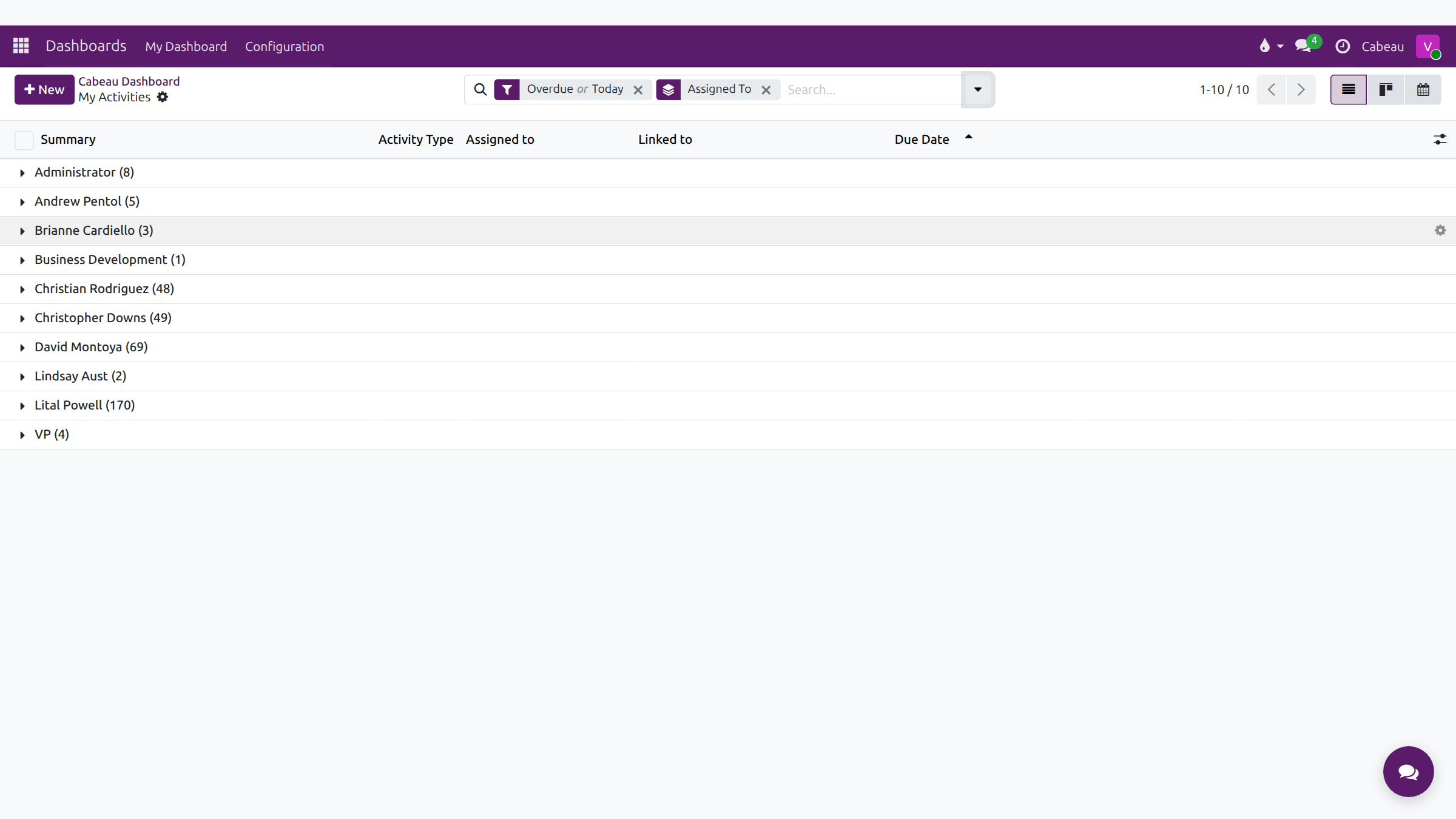
- As VP, remove the My Activities filter to see every rep's tasks in one list.
- Group by Assigned To to read the list rep by rep.
- To change a task's due date or owner, open it from the account with Edit, then set the new date or the person.
- That is where the team's tasks live.
Your tasks
Section titled “Your tasks”- The clock in the top bar counts tasks late, due today and coming up.
- Activities on your dashboard opens My Activities, filtered to overdue and today, with Reschedule, Done, Cancel, Reassign and Details on each row.
Reprioritise
Section titled “Reprioritise”Tasks are ordered by due date. To move one up or down, Reschedule it; to hand it to someone else, Reassign it. In an account’s chatter, Edit on the activity does the same.
What the VP sees
Section titled “What the VP sees”- Open Activities on the dashboard.
- Remove the My Activities filter. You now see every rep’s open tasks.
- Group by Assigned to to see each person’s list, and use Reschedule or Reassign on any of them.
The Activities column on All Accounts shows the next task on every account. CRM > Reporting > Activities reports on completed tasks over the last twelve months.