
Leads
Leads pipeline
Section titled “Leads pipeline”CRM opens the pipeline board; CRM > Leads gives the list.
| Role | Access |
|---|---|
| VP of Sales | Every lead; assigns them |
| Business Development | Manages your own leads and unassigned leads |
| Account Manager | No pipeline menu |
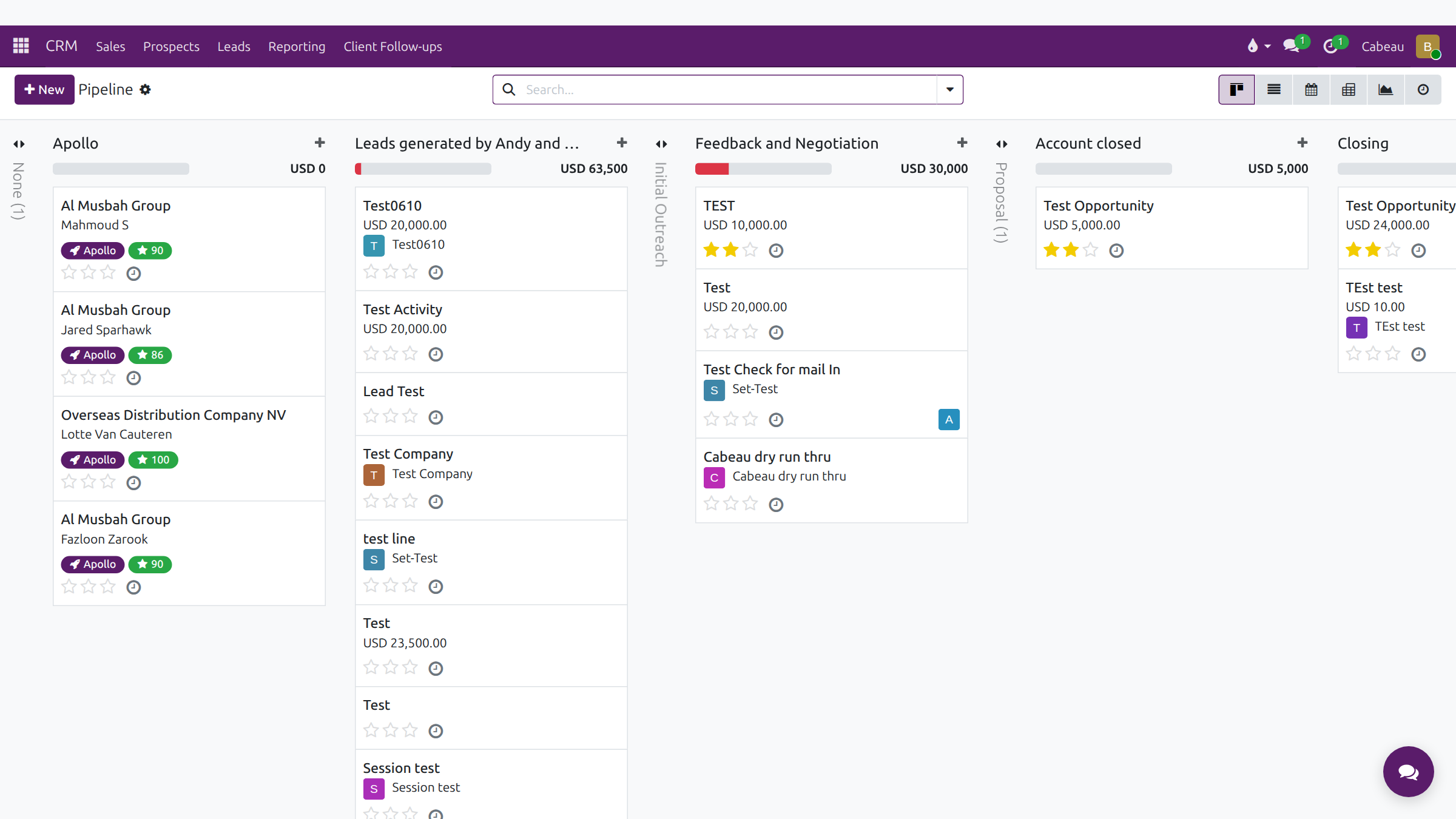
- Kanban: one column per stage, from Apollo through Initial Outreach, Feedback and Negotiation, Proposal and Closing to Post Sales. Drag a card to move it.
- List: each lead shows as Company (Title), with email, city, country, salesperson, sales team and job title. Add the Apollo Fit column from the column picker.
Transcript
- This video covers your pipeline in Cabeau Hub, where every lead and opportunity moves from first contact to closing.
- Open C R M from the apps menu and your pipeline appears as a board. Each column is a stage.
- The header of each column shows the expected revenue in that stage. Narrow columns are folded, and open with a click.
- Cards found through Apollo carry an Apollo tag and a fit score. You move a card to the next column as the deal progresses.
- The buttons at the top right switch the board to a list, calendar, pivot table, graph or activity view.
- Click a card to open the lead. The bar at the top shows its stage.
- Below the name sit expected revenue, probability, the contact, the salesperson and the expected closing date.
- Enrich fills in company and contact details from Apollo. New Quotation starts a quote for this lead.
- Convert to Customer turns the lead into a customer account. Won and Lost close it either way.
- The tabs hold notes, contacts and meeting transcripts. Log notes and plan activities in the panel on the right.
- That is your pipeline. Next, finding new leads with Apollo.
Assigning leads
Section titled “Assigning leads”Open the lead and choose the rep in Salesperson. The VP can assign any lead; Business Development can reassign the leads it manages.
Transcript
- This video covers the pipeline and leads, from new prospects through to closing.
- The CRM app opens on the pipeline. Each column is a stage, from leads generated by Apollo or by the team, through outreach and negotiation, to closing.
- The bar under each stage shows its expected revenue. Cards carry the company, the contact, a priority in stars, and the owner.
- Leads sourced through Apollo carry an Apollo tag and a fit score.
- Switch to list, calendar, pivot or graph views from the top right.
- Open a lead to see its expected revenue, the probability estimated by the Hub's AI, the contact and the salesperson.
- As VP, you assign a lead by changing its salesperson. The new owner sees it in their pipeline.
- The buttons above start a quotation, mark the lead won or lost, enrich it with Apollo, or convert it to a customer.
- The stage bar on the right shows where the lead sits. The Cabeau tab holds its territory, channel and qualification checks.
- CRM, Leads lists every lead in one table, with the country, salesperson and sales team.
- Generate Leads asks how many companies you want, and in which countries, states and industries.
- Choose the salesperson the new leads go to, then Generate Leads. Here, we cancel.
- That is the pipeline and leads. Next, the annual forecast.
Converting a lead to a customer
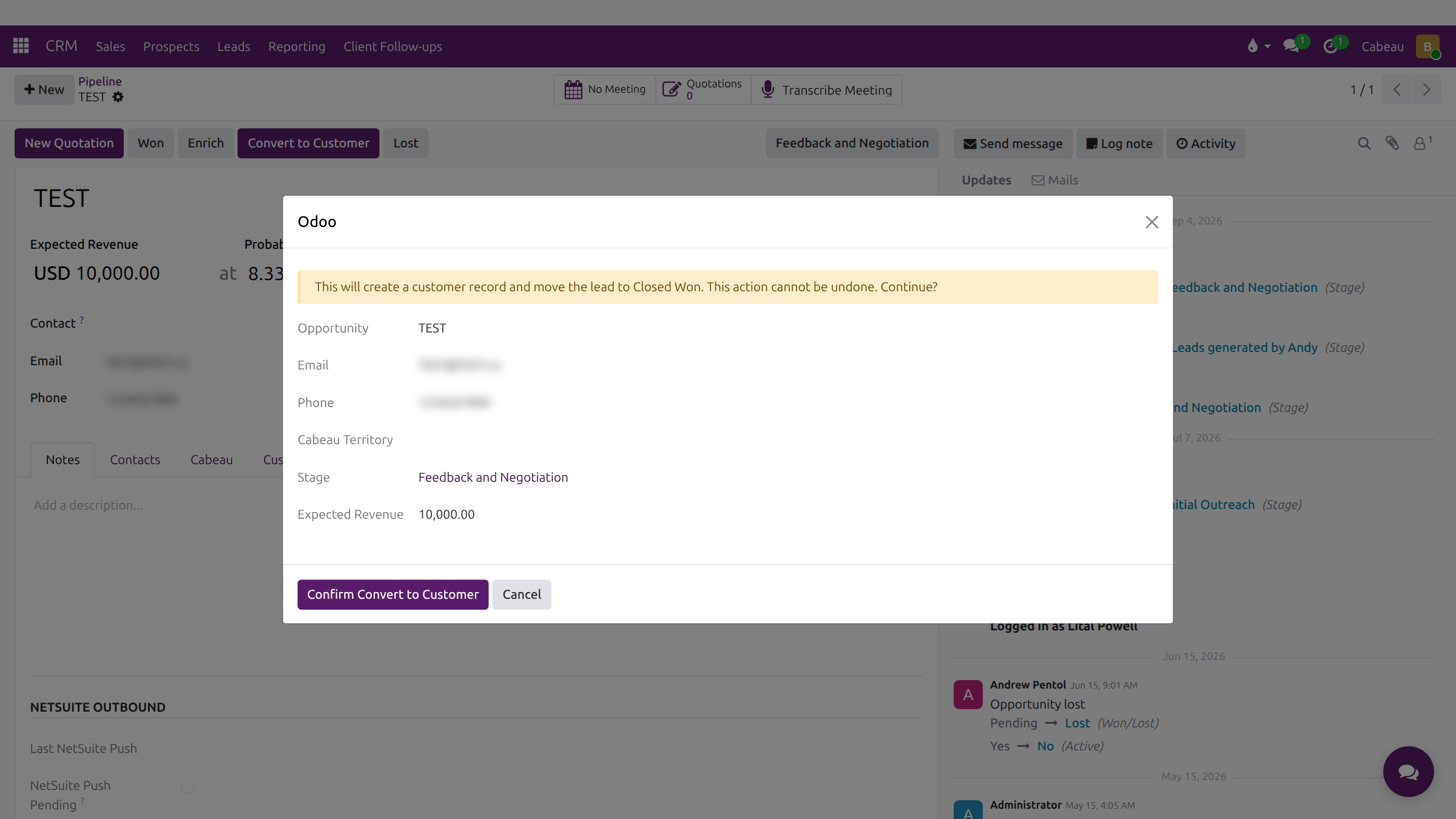
Section titled “Converting a lead to a customer”When a lead is won, select Convert to Customer. A confirmation shows the opportunity, email, phone, territory, stage and expected revenue, and warns that it creates the customer, moves the lead to Closed Won, and cannot be undone. Select Confirm Convert to Customer. The new customer is sent to NetSuite.
Transcript
- This video shows how to turn a won lead into a customer.
- When a lead is won, open it. Convert to Customer sits in the button bar at the top.
- Select it. A confirmation shows the opportunity, contact details, territory, stage and expected revenue.
- Confirming creates the customer record and moves the lead to Closed Won. It cannot be undone, so check the details first.
- Cancel closes it without changing anything.
- That is how to convert a lead to a customer.
Apollo discovery
Section titled “Apollo discovery”The Apollo shortcut on the VP and Business Development dashboards opens the Apollo dashboard: search criteria, Run discovery now, recent runs, the ingest log with each contact’s Fit score, contacts Pending Review, Dedup Candidates and the Block List. See Finding new accounts with lead gen and How new leads arrive.
Transcript
- This video shows how you find new accounts with Apollo discovery and Claude lead generation.
- Open Cabeau Tools, Apollo, Dashboard. Discovery looks for people who match these settings.
- Person titles sets the job titles, such as buyers and category managers. Person locations sets the countries to search.
- Industries narrows it to channels such as travel retail, duty free and department stores. Keywords narrow it further.
- Run discovery now searches Apollo with these settings. Generate with Claude finds matching companies on the web, and Apollo turns them into leads.
- Every run is listed under recent discovery runs, with how many leads it created, staged and skipped.
- The Ingest Log lists every person found. The fit score, out of one hundred, shows how closely each one matches your profile.
- Leads created by a run land in the Apollo stage of your pipeline, tagged Apollo with their score.
- Open a lead to see the contact, the company and the qualification checks on the Cabeau tab.
- That is lead generation. Next, how new leads arrive and how duplicates are caught.