
Administration
VP of Sales only.
Approvals
Section titled “Approvals”Requests from the team wait in three lists under Cabeau Tools:
| List | Holds |
|---|---|
| Forecast > Change Requests | Changes to a locked forecast |
| Price Change Requests | Customer price changes |
| Relationship Change Requests | Moving an account under a different parent |
Each opens on the pending requests. Open one, read it, and select Approve or Reject. The Forecast card on the Cabeau Tools home shows how many forecast requests are pending.
Transcript
- This video covers approvals. When a rep changes a forecast, a price or an account relationship, the change waits for you.
- Cabeau Tools, Forecast, Change Requests lists every forecast change pending approval.
- Each row shows the account, the month, the previous and proposed amounts, and who asked for it.
- Open a request to review it. The reason the rep gave appears here, with the review details below.
- Approve applies the new amount to the forecast. Reject leaves the forecast as it was.
- Goal Line and Customer jump to the forecast line and the account behind the request.
- Price Change Requests collects price changes reps make on an account's item pricing, with the current and proposed price.
- Relationship Change Requests collects requests to move an account under a different parent account.
- Both lists open on pending requests, so an empty list means nothing is waiting for you.
- That is approvals. Next, the reorder monitor.
Reassigning accounts and territories
Section titled “Reassigning accounts and territories”- An account: open it, and on the Cabeau tab change Primary AM or Secondary AM.
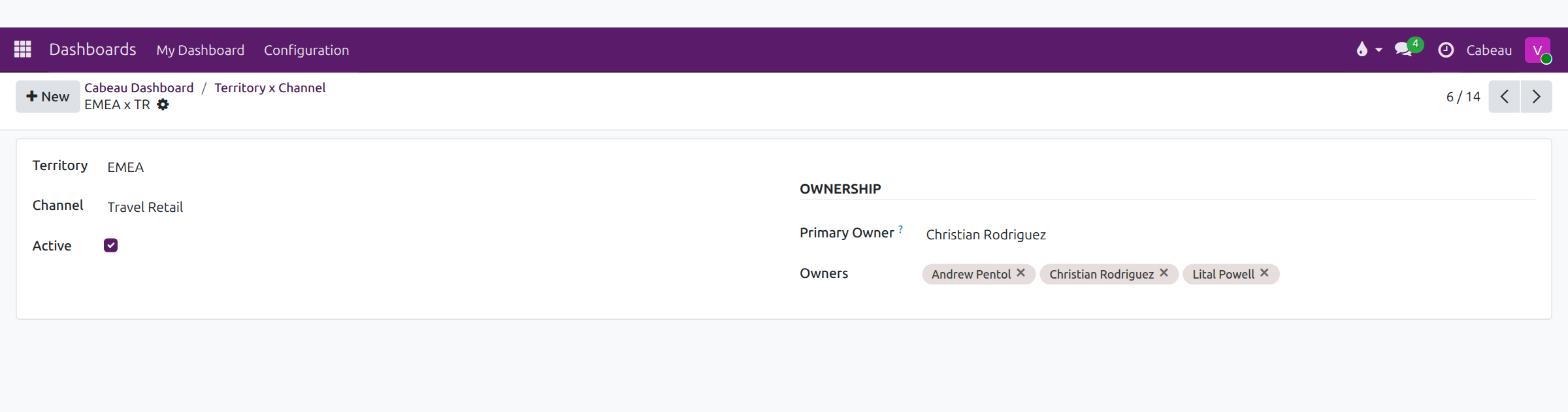
- A territory and channel: open Territory x Channel from the dashboard and change its Primary Owner and Owners.
- A pipeline stage: drag the card to another column, or use the stage bar on the lead.
Transcript
- This video shows how territories and channels shape what you see in Cabeau Hub.
- The territory filter on your dashboard narrows every figure to one territory. Here, EMEA.
- Revenue, pipeline, active accounts and open orders now count EMEA accounts only.
- Set it back to All Territories to see the whole team again.
- Territory x Channel lists every combination of territory and sales channel: travel retail, mixed and mass.
- Each row names a primary owner, the rep accountable for those accounts, and every owner who can work them.
- Open a row to see its ownership on one card. Accounts in that territory and channel follow these owners.
- Use the breadcrumb to return to your dashboard.
- That is territories and channels. Next, working with accounts.
Reps who spot a wrong assignment report it; see Support.