Getting started
Logging in and changing your password
Section titled “Logging in and changing your password”Sign in at hub-cabeau.hsclr.com with your Cabeau email and password. Reset Password under the password box emails you a link; Use a Passkey signs in with a passkey once you have set one up.
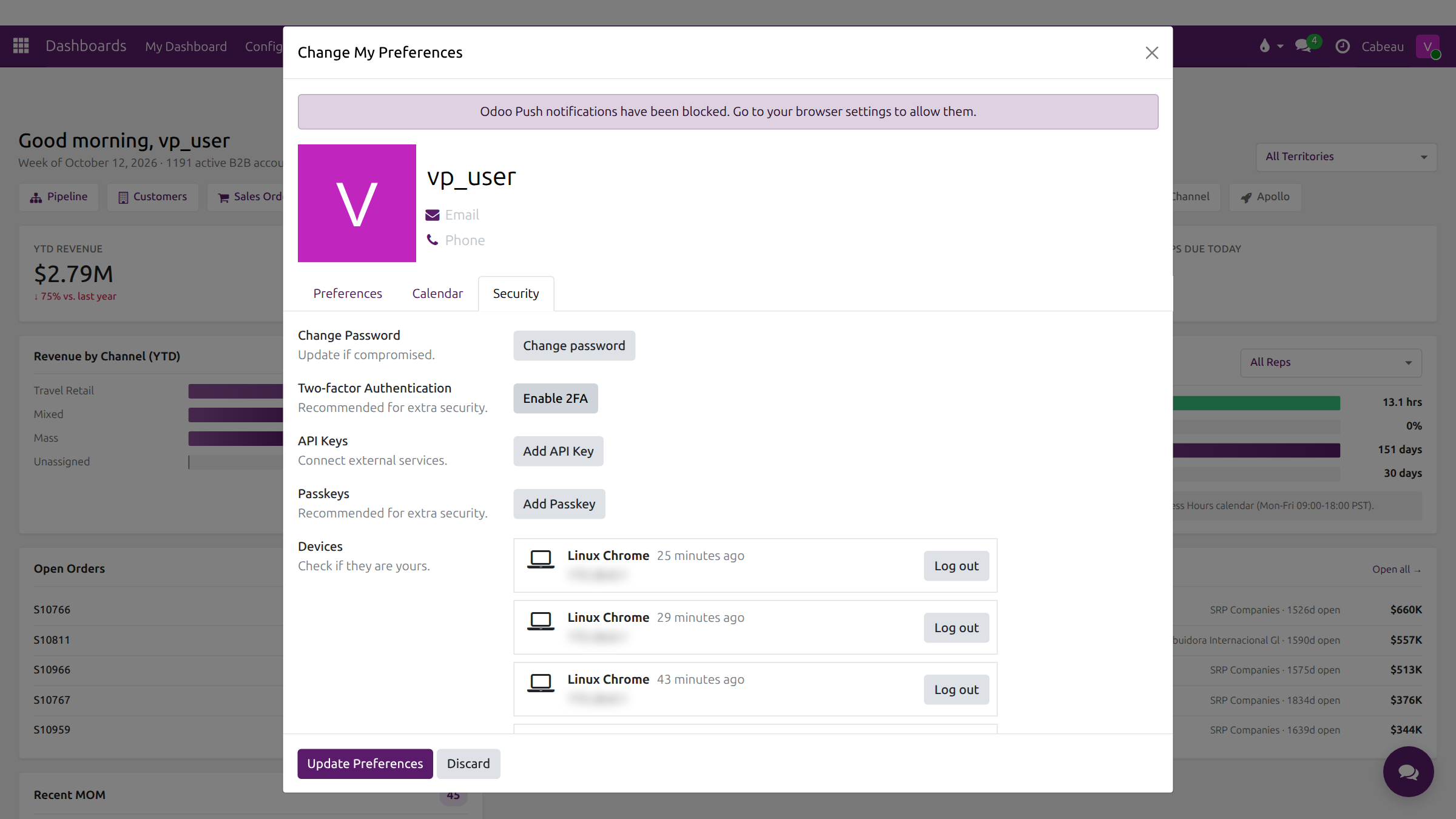
To change your password: select your initial at the top right, then My Preferences, the Security tab, and Change password. The same tab lets you turn on two-factor authentication, add a passkey, and log out of your other devices.
Transcript
- This video shows how to sign in to Cabeau Hub and how to change your password.
- Go to hub-cabeau.hsclr.com. Enter your Cabeau email address and your password, then select Log in.
- Forgot your password? Reset Password emails you a link. Once you have set one up, Use a Passkey signs you in without a password.
- Once you are in, select your initial at the top right, then My Preferences.
- Open the Security tab. Change password asks for your current password, then the new one.
- From the same tab you can turn on two-factor authentication, add a passkey, and log out of devices you no longer use.
- Discard closes the window without changing anything.
- That is signing in and changing your password.
Cabeau Tools menu
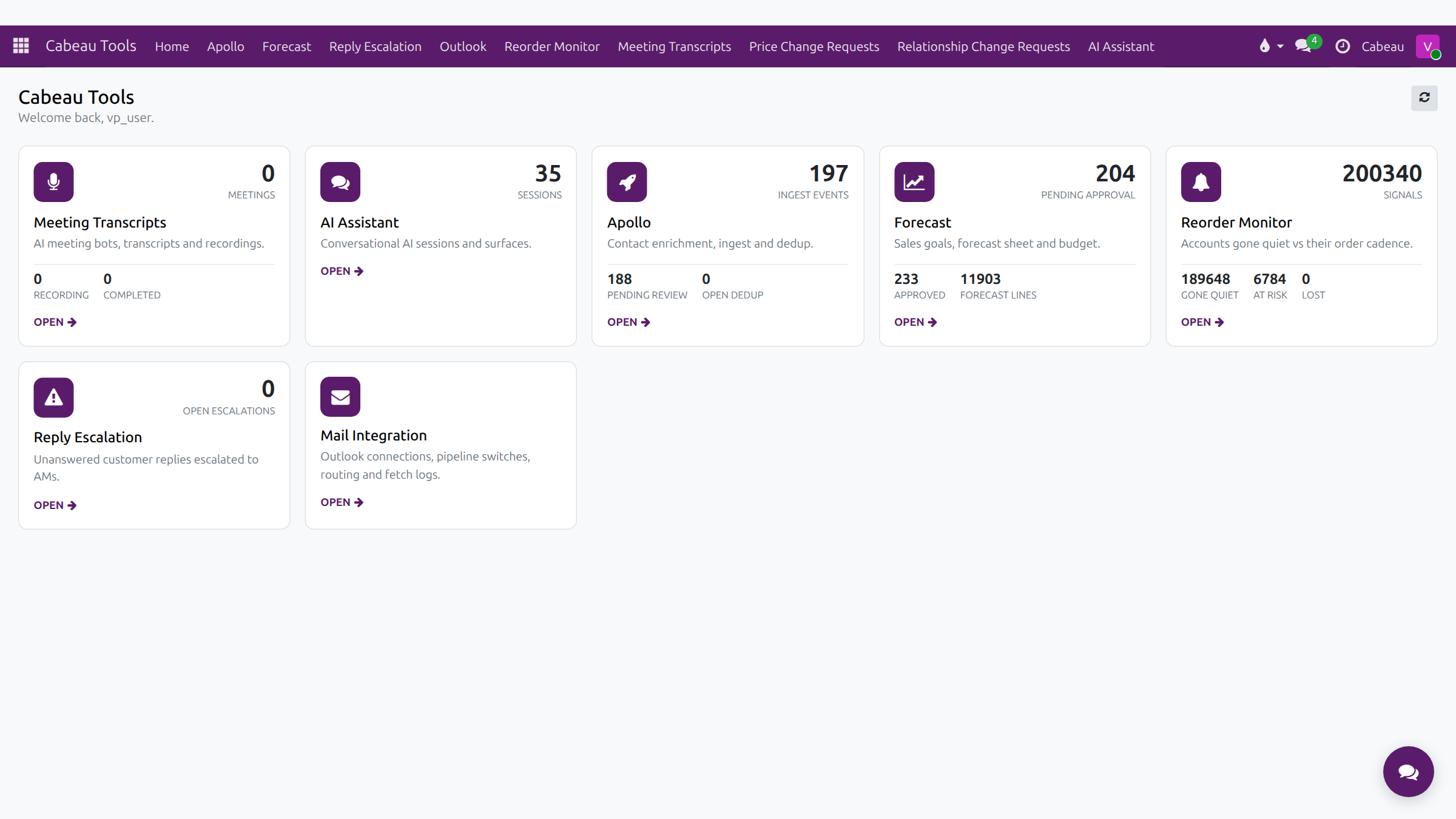
Section titled “Cabeau Tools menu”Open the apps menu (the grid at the top left) and select Cabeau Tools. Its home page has a card for each Cabeau function with counts and an Open link: Meeting Transcripts, AI Assistant, Apollo, Forecast, Reorder Monitor, Reply Escalation and Mail Integration.
| Role | Cabeau Tools menu |
|---|---|
| VP of Sales | Home, Apollo, Forecast, Reply Escalation, Outlook, Reorder Monitor, Meeting Transcripts, Price Change Requests, Relationship Change Requests, AI Assistant |
| Account Manager | Home, Forecast, Reorder Monitor, Price Change Requests, Relationship Change Requests |
| Business Development | Home, Apollo, Price Change Requests, Relationship Change Requests |
For the VP, the approvals are all here: Forecast > Change Requests, Price Change Requests and Relationship Change Requests.
Transcript
- This video shows the Cabeau Tools menu, where the Cabeau-specific tools live.
- Open the apps menu at the top left and select Cabeau Tools.
- The home page shows a card for each tool with its latest figures. Open on a card takes you straight in.
- The menu bar lists the tools: Forecast, the Reorder Monitor, Meeting Transcripts, and the change request queues.
- Meeting Transcripts starts a recording with Transcribe Meeting and lists your transcripts.
- As VP, this is also where you approve: forecast change requests under Forecast, price change requests, and relationship change requests.
- Account managers and business development see a shorter menu with the tools for their role.
- That is the Cabeau Tools menu.
Your dashboard
Section titled “Your dashboard”Your dashboard opens when you sign in and follows your role.
| Role | Leads with |
|---|---|
| VP of Sales | Team revenue, open pipeline, active accounts, team follow-ups, filters for territory and rep, forecast against actuals, under pace, sales by territory |
| Business Development | Leads created, opportunities created, win rate, pipeline by stage, recent leads, stalled opportunities, conversion funnel |
| Account Manager | Your revenue, active accounts and follow-ups, at-risk accounts, under pace, quarterly forecast progress |
Guides: VP dashboard, BD dashboard, AM dashboard. Every number opens the records behind it; see Reporting.
Transcript
- This video covers your home dashboard in Cabeau Hub, the first screen you see as VP of Sales.
- The greeting line tells you the week, how many active B2B accounts there are, and how many ordered in the last ninety days.
- The search bar finds customers, leads, orders and invoices from one place.
- The shortcut row opens the pipeline, customers, sales orders, inventory, invoices, payments, activities, your agenda, the forecast and meeting transcripts.
- Four headline numbers follow: revenue this year against last year, open pipeline, accounts active in the last ninety days, and team follow-ups due today.
- Use the territory filter at the top right to narrow every figure on the page to one territory.
- Revenue by channel splits this year's revenue across travel retail, mixed and mass.
- Timing and accountability shows how quickly the team responds, measured in business hours, follow-up compliance, and how long deals take. Pick one rep to see their numbers alone.
- Further down, open orders lists the largest orders still open, with the customer and how long each has been open. Open all shows the complete list.
- Recent minutes of meeting lists the meetings summarised by the Hub, with their tasks.
- That is your dashboard. Next, drilling into territories and channels.
Dates and time zones
Section titled “Dates and time zones”Dates and times show in your own time zone. A colleague in another time zone can see a different date for the same order or email, which is expected.
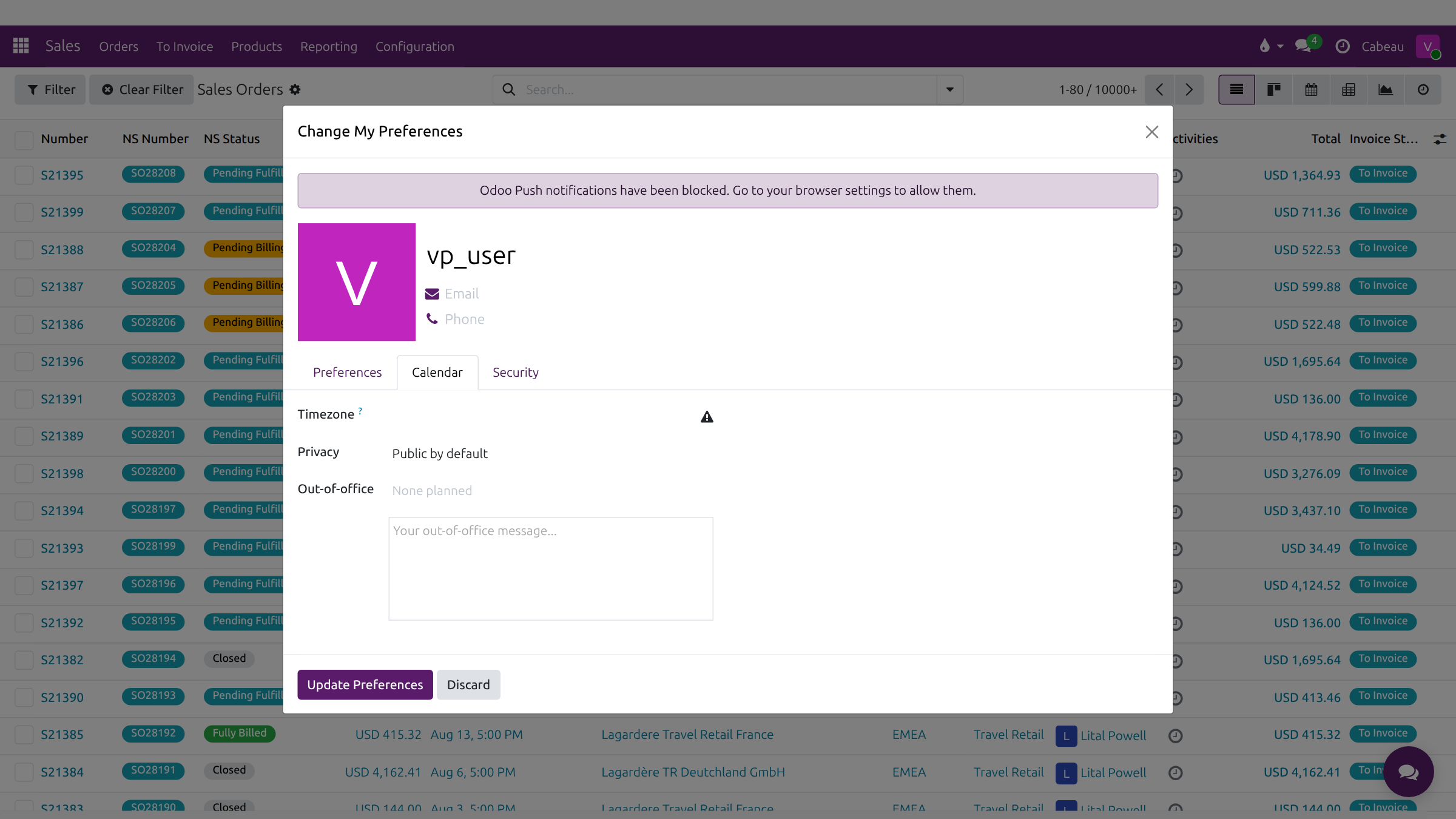
Set your time zone under your initial > My Preferences > Calendar tab > Timezone. A warning icon appears beside it when it differs from your computer’s.
Transcript
- This video explains how the Hub shows dates and times across time zones.
- Dates and times in the Hub show in your own time zone. This order date is shown as it falls where you are.
- A colleague in Europe or Asia sees the same moment in their own time, so an order placed late in the evening can show the next day for them.
- Your time zone is set under your initial, My Preferences, on the Calendar tab.
- Set it to where you work. A warning sign appears when it differs from your computer's time zone. Discard closes without changes.
- When a date looks a day out, check with the colleague which time zone they are in before you change anything.
- That is how dates and time zones work in the Hub.