
Calendar
The Calendar app shows your meetings and lets you see colleagues’ meetings beside yours.
Transcript
- This video covers the Calendar app, where your meetings with customers and the team are scheduled.
- Open the apps menu and choose Calendar. It opens on the current week, with today marked in red.
- The arrows move one period back or forward, and Today brings you back. The scale button switches between day, week, month and year.
- The small month on the right jumps to any date. Below it, the attendee filter shows whose meetings are on the calendar.
- New schedules a meeting, and the list button at the top right shows meetings as a list instead.
- Meetings with a customer also appear on the account, under the Meetings button at the top of its record.
- That is your calendar.
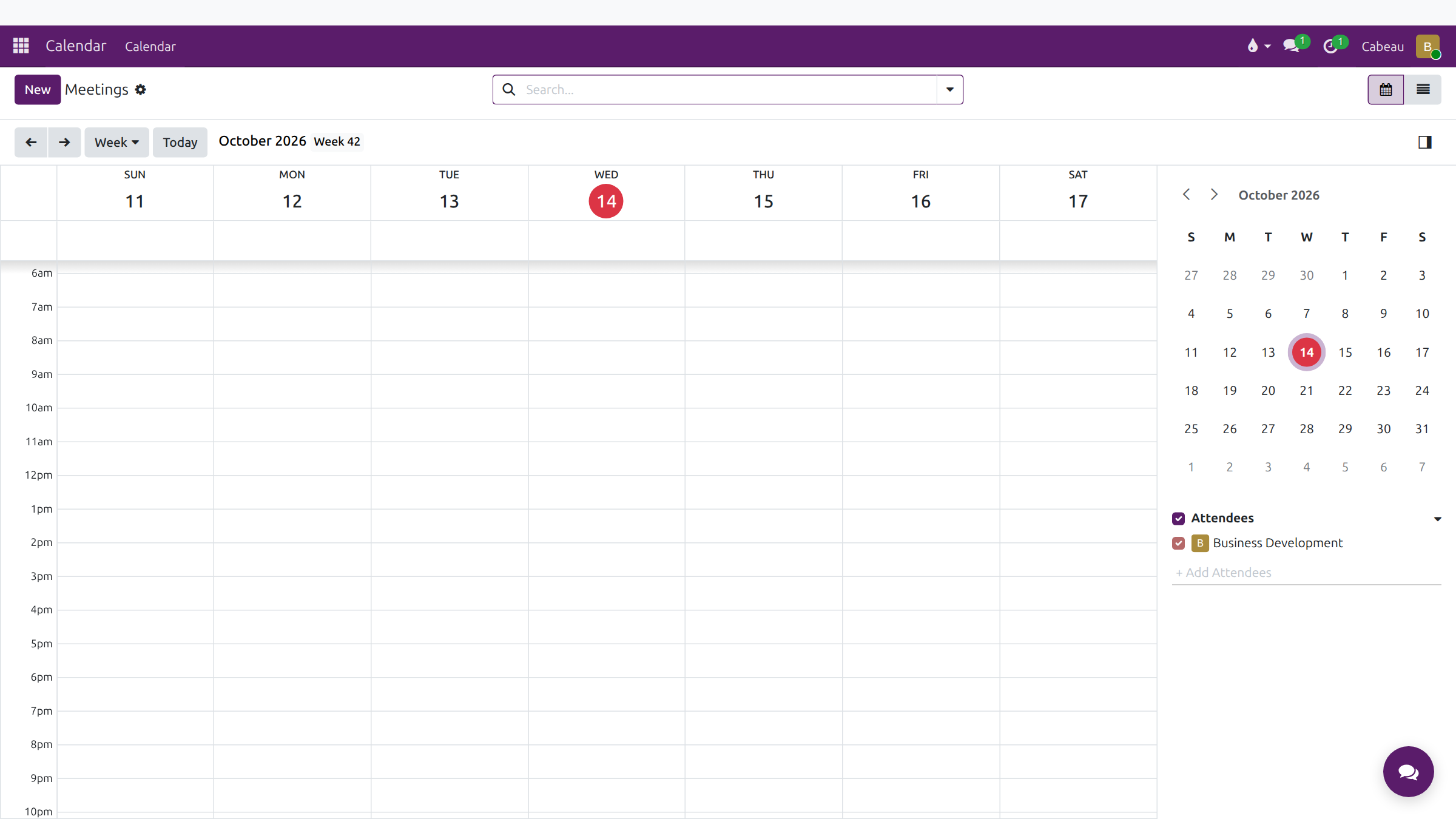
- It opens on the current week, with today circled.
- Use the arrows to move back and forward, and Today to come back.
- The scale button switches between Day, Week, Month and Year.
- The mini month on the right jumps to any date.
- Under Attendees, add colleagues to see their meetings beside yours.
- New schedules a meeting. The list view shows meetings as a list.
On any customer record, the Meetings button lists the meetings held with that customer.