
Forecast
The forecast sheet holds a monthly revenue forecast for every account. Open it from the Forecast shortcut on the dashboard, or Cabeau Tools > Forecast > Forecast Sheet.
Transcript
- This video covers the annual forecast: a monthly revenue target for every account.
- Open it from the Forecast shortcut on your dashboard, or from Cabeau Tools, Forecast. Each row is an account, each column a month.
- Filter by territory, rep, year, channel, or active accounts, or search for one account.
- Here, the accounts David Montoya manages.
- A shaded cell has a change waiting for your approval. The total row adds up each month.
- The year is locked, so changes from reps go through approval. As VP, you can unlock it.
- Allow Users names trusted users whose edits apply straight away, even while the year is locked.
- Export XLSX downloads the sheet to Excel. Import XLSX loads a completed sheet back in.
- Forecast vs Actual puts each month's actual sales under the forecast, with the variance as a percentage.
- Filter by variance to find accounts running behind, or tick Currently Dormant to list accounts that have stopped ordering.
- Annual Budget holds the budget figures per account and month, with its own export.
- That is the forecast. Next, approving changes from your team.
Three tabs
Section titled “Three tabs”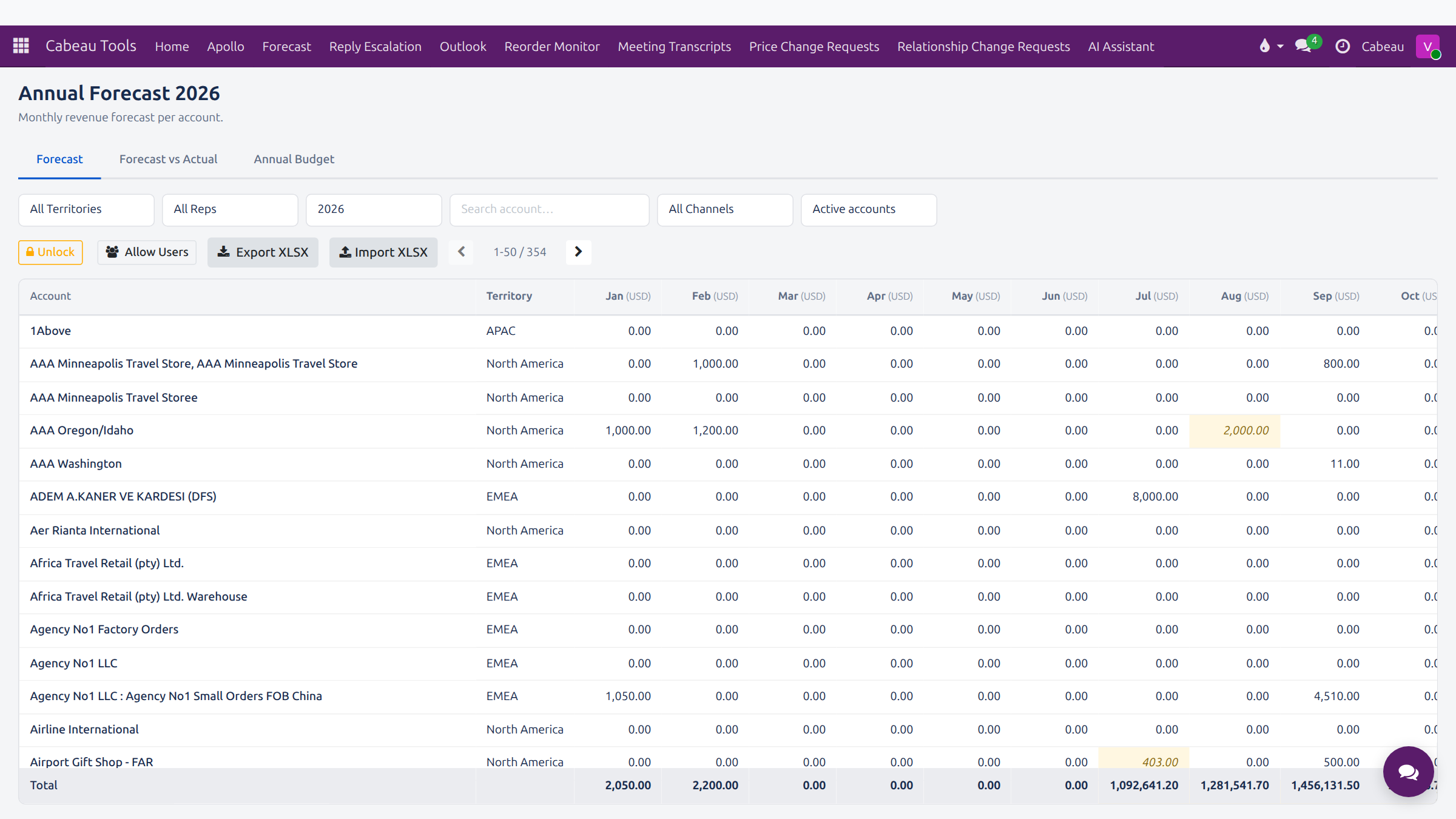
| Tab | Shows |
|---|---|
| Forecast | Each account’s forecast for January to December, with a total row |
| Forecast vs Actual | The forecast with actual sales underneath and the variance |
| Annual Budget | The budget figure per account and month |
Filters across the top: territory, rep, year, channel, active or inactive accounts, and an account search. The sheet shows 50 accounts at a time; use the arrows to page.
A shaded cell has a change request waiting for your approval.
Who can edit the forecast
Section titled “Who can edit the forecast”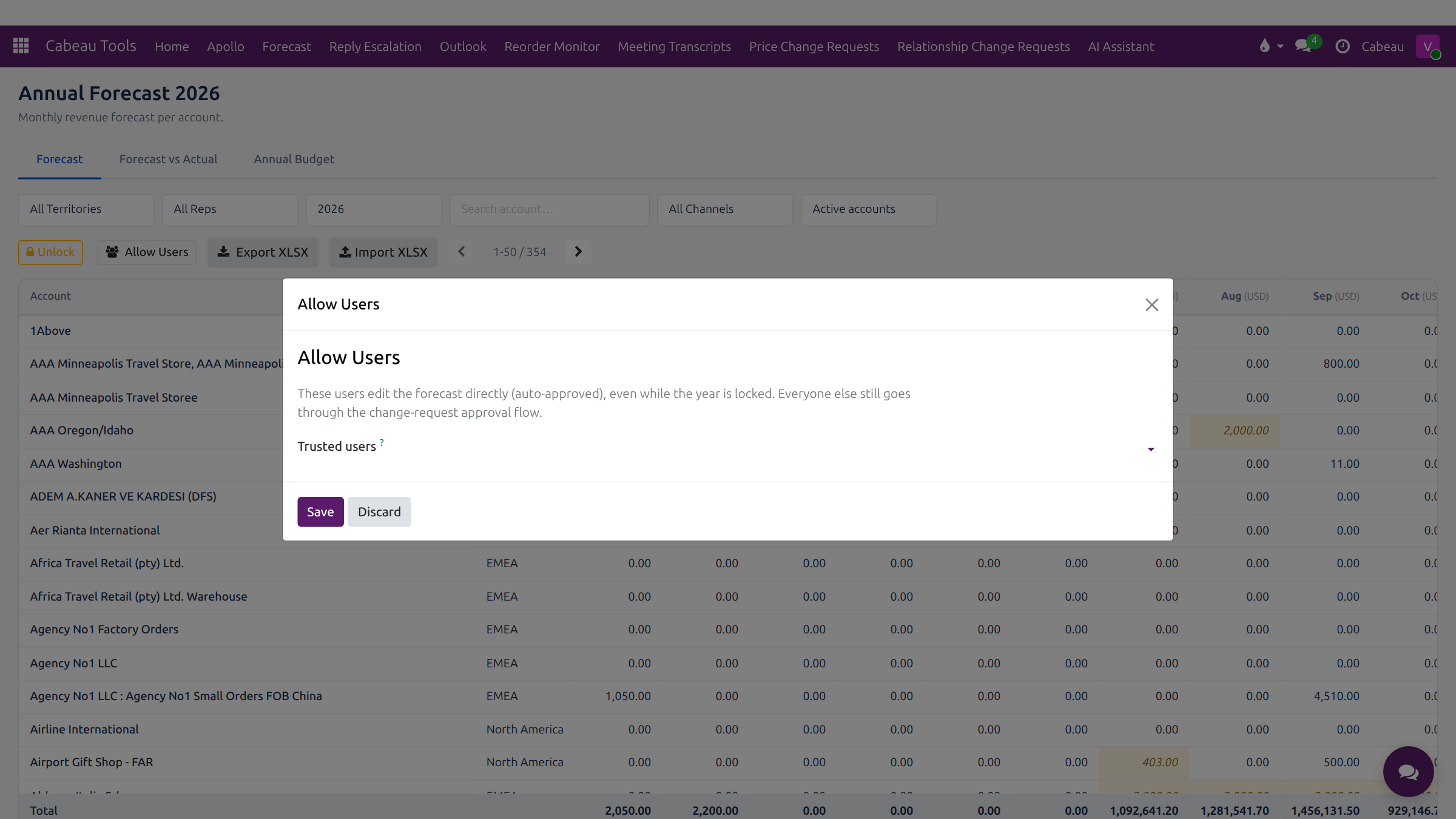
- The year is locked by default. Select Unlock to open it for editing.
- Allow Users names trusted users who may edit directly, even while the year is locked. Their changes are approved automatically.
- Everyone else proposes changes as change requests, which come to you. See Approvals.
Forecast against actuals
Section titled “Forecast against actuals”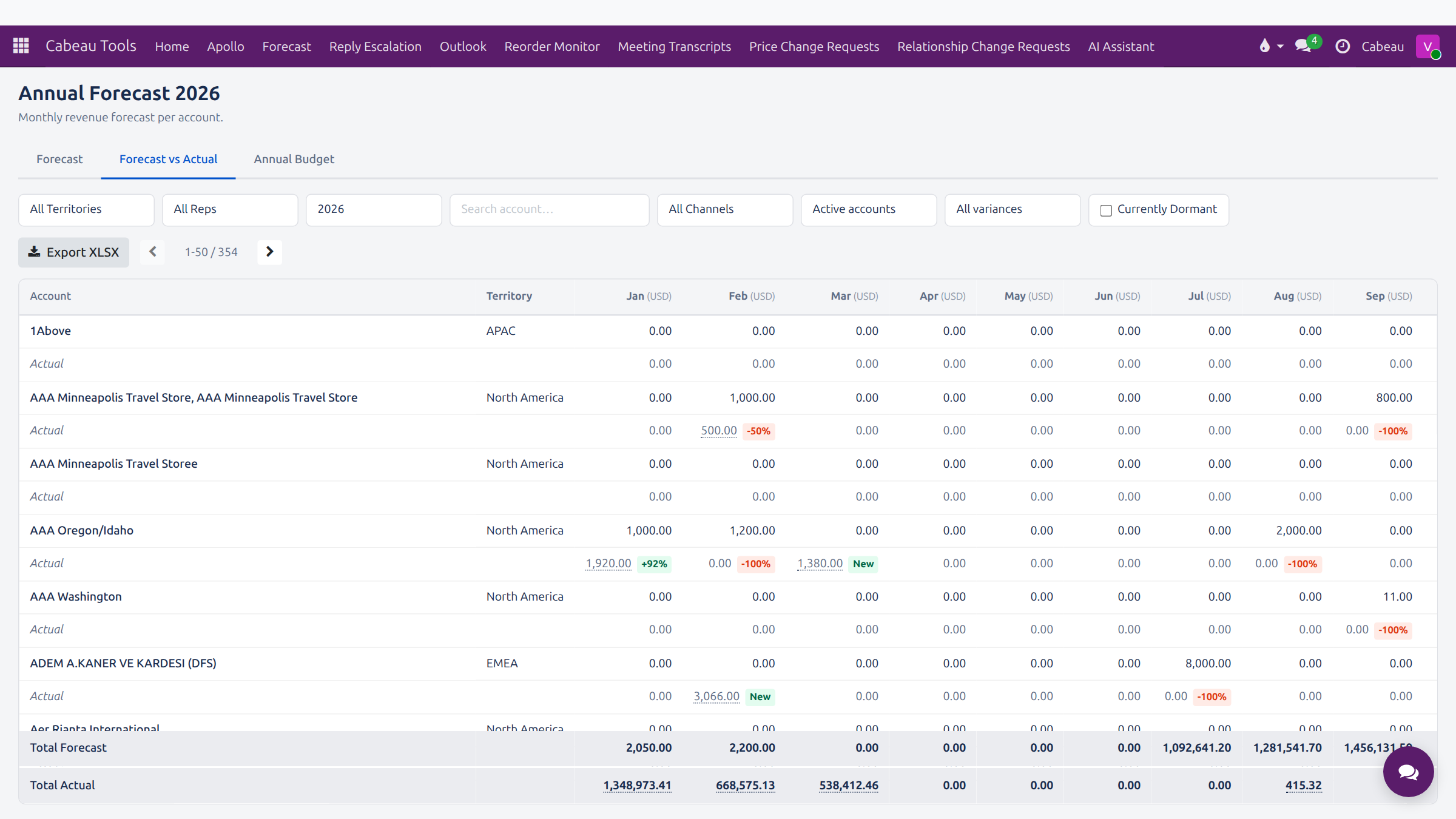
Each account shows its forecast row with an Actual row underneath. Badges show the variance: a percentage over or under, or New where there are sales against no forecast.
Two extra filters help you find problems fast:
- Variance: under by 0 to 10 per cent, 10 to 20 per cent, 30 per cent or more, or over forecast.
- Currently Dormant: accounts that have stopped ordering.
Annual budget
Section titled “Annual budget”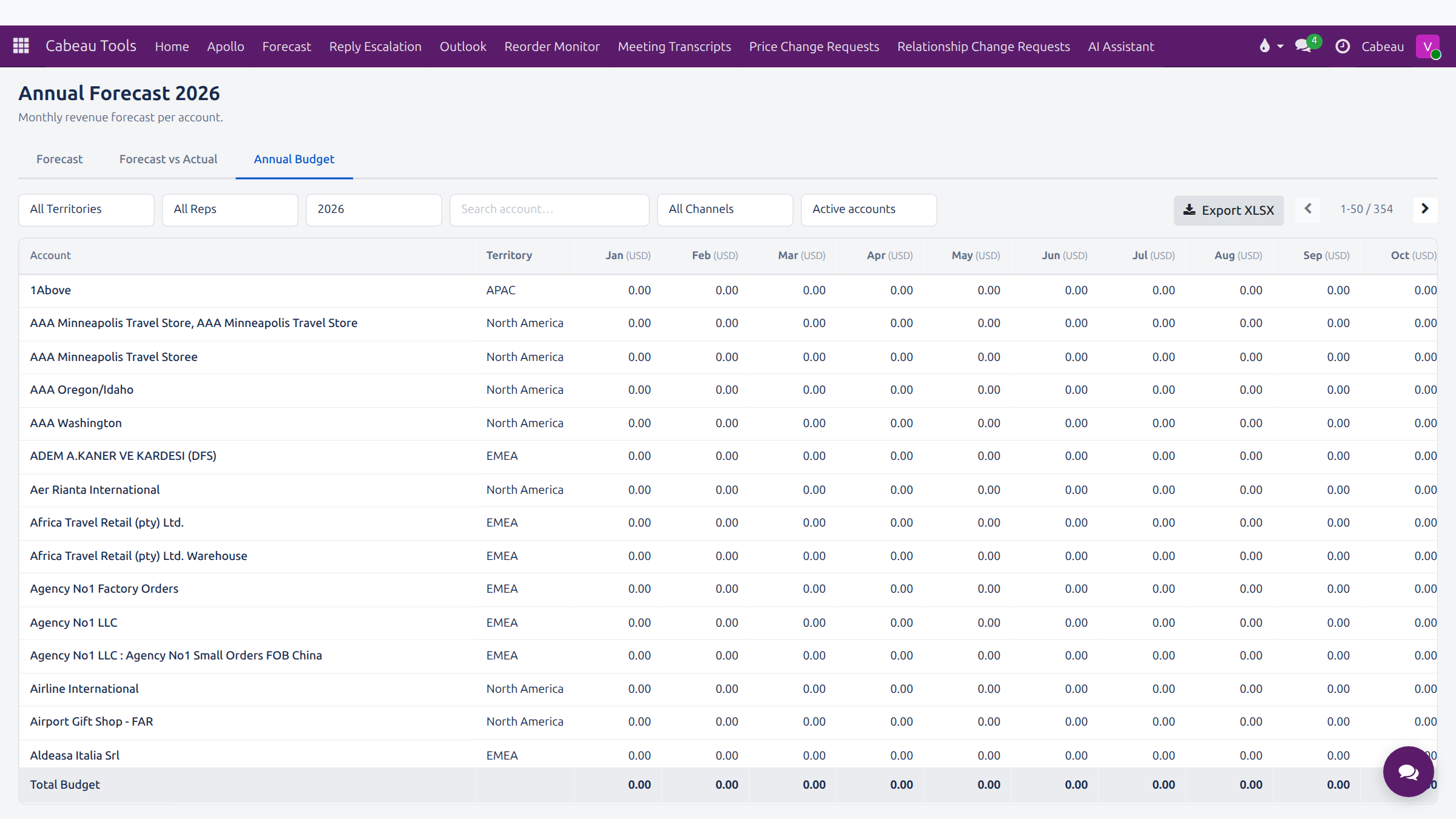
The same grid, holding the budget, with a Total Budget row.
Export and import
Section titled “Export and import”Export XLSX downloads what you are looking at to Excel, on every tab. Import XLSX on the Forecast tab loads a prepared sheet.