
Activities and follow-ups
The Hub keeps the team’s follow-through visible: planned activities, meetings, automatic follow-up emails, and escalation when a customer reply goes unanswered.
Transcript
- This video covers activities, the calendar, client follow-ups and reply escalation.
- The clock icon at the top shows activities due today or overdue. When there are none, it says you are done.
- The Activities shortcut on your dashboard lists your own activities that are overdue or due today, with what each one is linked to.
- The Calendar app shows your meetings by day, week or month. Today is circled.
- Under Attendees, add colleagues to see their meetings alongside yours.
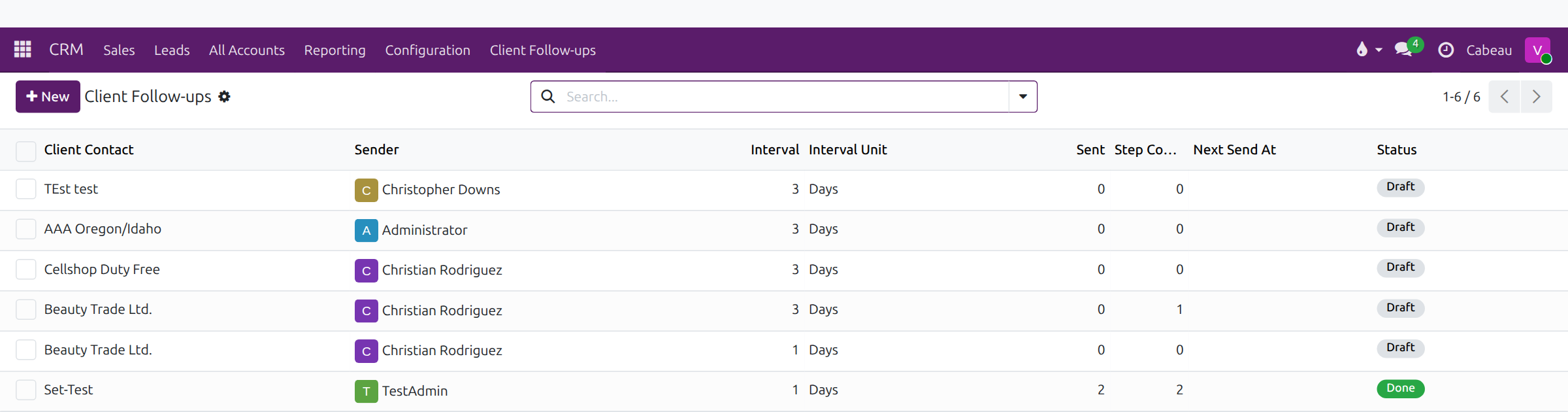
- CRM, Client Follow-ups lists automatic follow-up sequences. Remove the My follow-ups filter to see the whole team's.
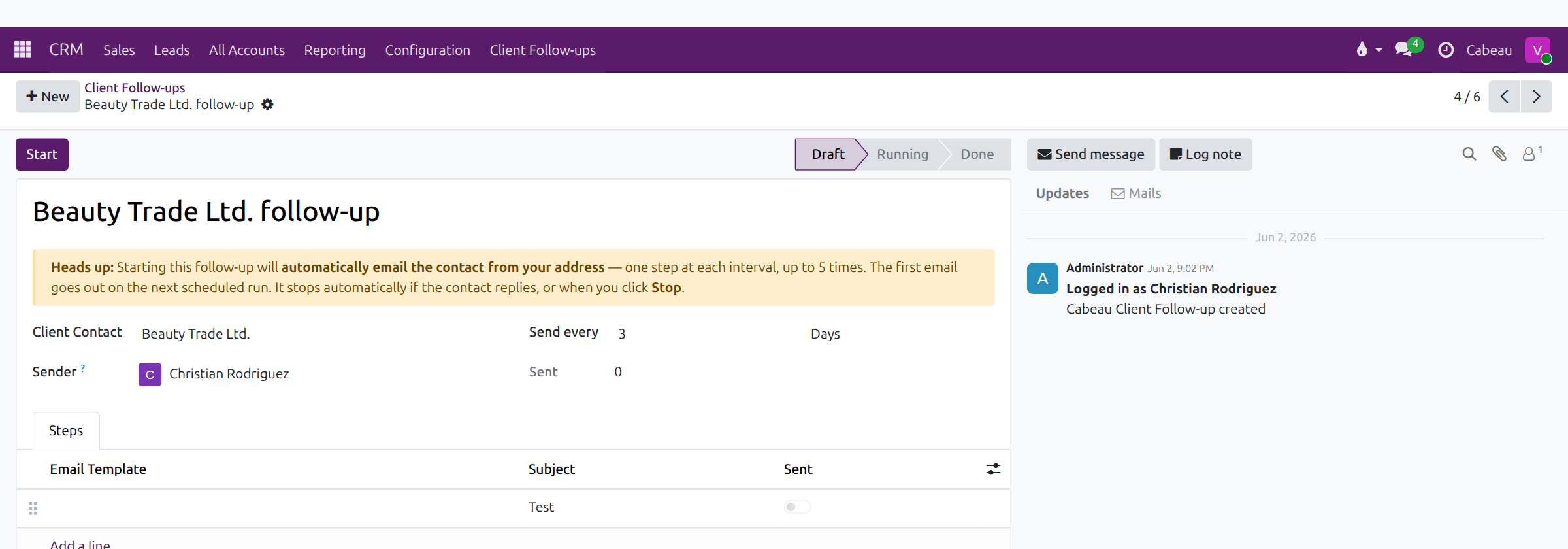
- A follow-up emails the client contact from the sender's address at a set interval, and stops when the contact replies.
- Steps hold the email for each round. Start sends the first one on the next scheduled run. Reps set one up from an account, under More.
- Reply escalation chases customer emails nobody has answered. Its settings are under Cabeau Tools, Reply Escalation.
- The master switch turns it on. Timing sets when a reminder goes out and when the reply escalates.
- Routing names who receives escalations. Discard closes the settings without changes.
- That covers activities, the calendar and follow-ups.
Activities
Section titled “Activities”The clock icon in the top bar lists your activities due, with View all activities. The Activities shortcut on the dashboard opens My Activities, filtered to overdue and today.

Calendar
Section titled “Calendar”The Calendar app opens on the current week. Switch between day, week and month, jump to today, and add colleagues under Attendees to see their meetings beside yours.
Client follow-ups
Section titled “Client follow-ups”CRM > Client Follow-ups lists automatic follow-up sequences to customer contacts. It opens on My follow-ups; remove that filter to see the whole team’s.
A follow-up emails the contact from your address, one step at each interval, up to five times. It stops when the contact replies or when you select Stop. Set one up from an account with More > Set Up Follow-up.
Reply escalation
Section titled “Reply escalation”Cabeau Tools > Reply Escalation > Escalation Config controls what happens when a customer email goes unanswered.
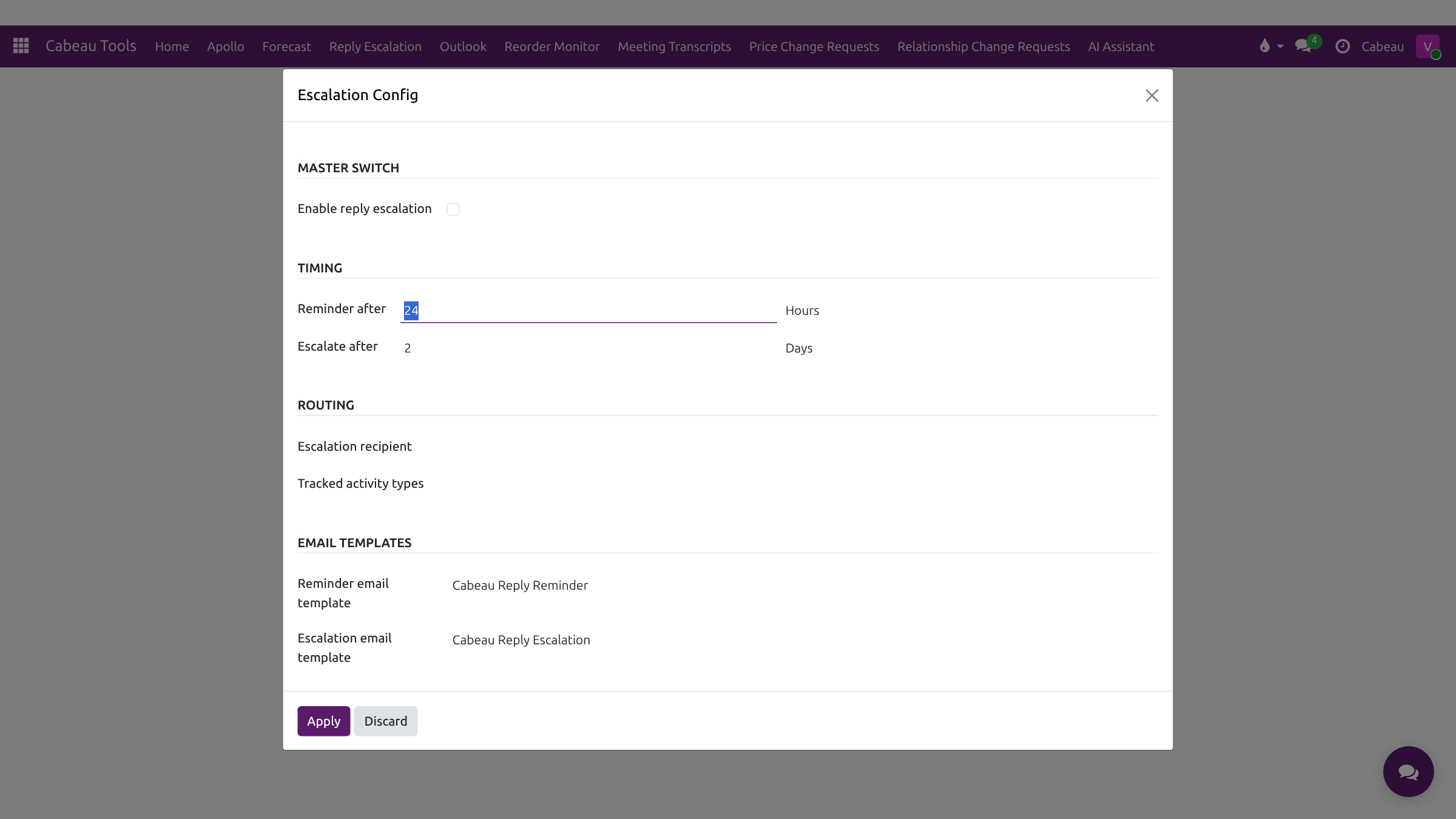
- Enable reply escalation switches it on for everyone.
- Timing: when the rep gets a reminder, and when the reply escalates.
- Routing: who receives escalations, and which activity types are tracked.
- Email templates for the reminder and the escalation.
Escalation Activities lists every escalation raised.