Pricing
Customer price lists
Section titled “Customer price lists”Sales > Products > Pricelists holds the standard lists (Online, Retail/MAP, SM FOB, Wholesale) and one NetSuite custom list per customer. Search by the customer’s name and open it to see each product’s price, minimum quantity and dates.
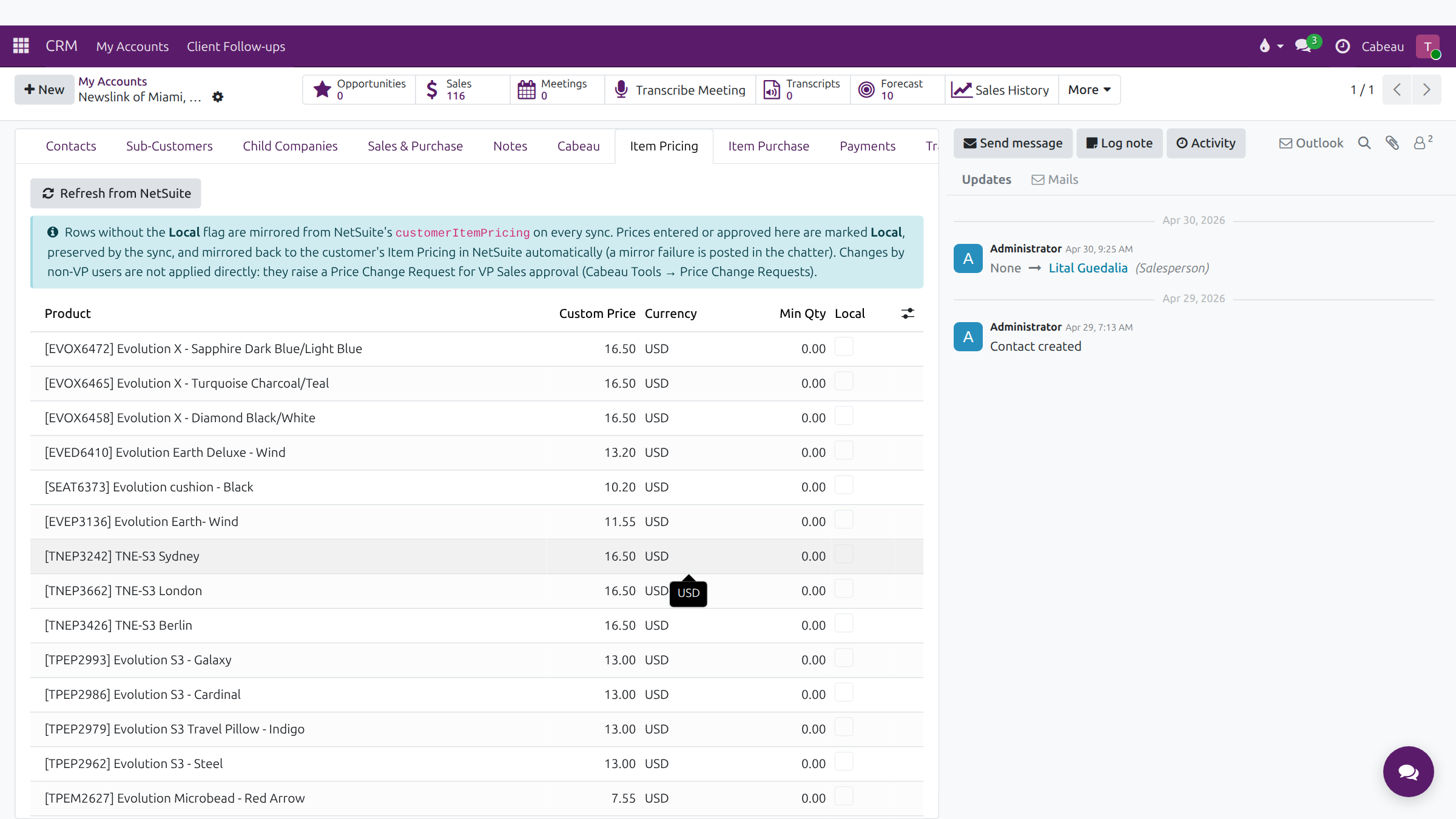
The same prices show on the account’s Item Pricing tab.
Transcript
- This video covers sales orders, pricing and stock for your accounts.
- Sales, Orders lists the orders for your accounts, synced from NetSuite, with the NetSuite number and status.
- Filter narrows the list by customer, NetSuite status or order date. Cancel closes it without changes.
- Open an order. Download PDF gives you the order to send, and Packing List the packing list.
- The NetSuite section shows the order's NetSuite number, status, and when it last synced.
- The Shipments tab holds ship dates, the ship method and tracking numbers.
- Sales, Products, Pricelists lists the price lists, including each customer's NetSuite prices.
- For stock, use the Inventory shortcut on your dashboard. It shows stock by warehouse.
- On hand is the physical stock per NetSuite. Committed is held for open orders, and available is what you can still sell.
- Check last sync before you quote stock to a customer.
- That is orders, pricing and stock. Next, follow-ups and activities.
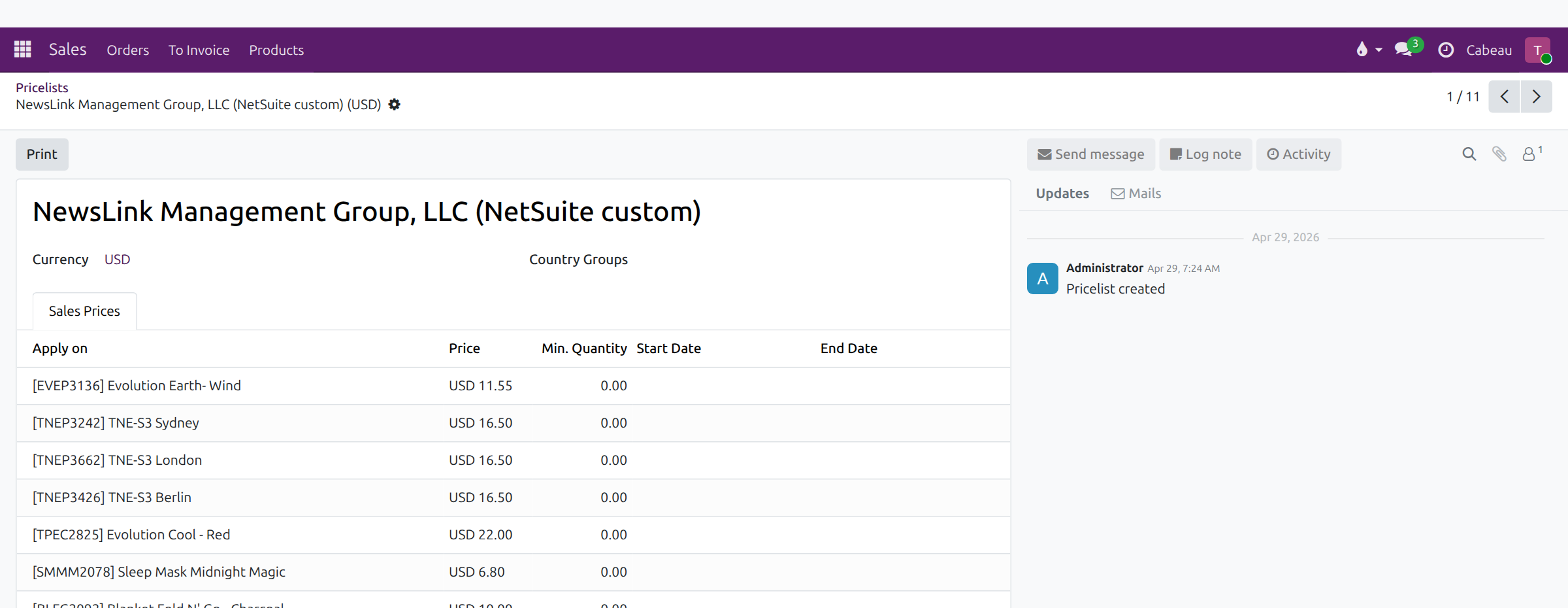
Account Managers and Business Development read price lists; the VP of Sales can edit them.
Requesting a price change
Section titled “Requesting a price change”On the account’s Item Pricing tab, change the price. Because you are not the VP, the change is not applied straight away: it raises a price change request for the VP of Sales. Follow your requests under Cabeau Tools > Price Change Requests.
Once approved, the price is marked Local, kept by the sync, and copied back to NetSuite.
Approving price changes
Section titled “Approving price changes”VP of Sales only. Cabeau Tools > Price Change Requests opens on Pending approval: account, product, action, current and proposed price, and who asked. Open a request and select Approve or Reject. See Approvals.
Transcript
- This video covers approvals. When a rep changes a forecast, a price or an account relationship, the change waits for you.
- Cabeau Tools, Forecast, Change Requests lists every forecast change pending approval.
- Each row shows the account, the month, the previous and proposed amounts, and who asked for it.
- Open a request to review it. The reason the rep gave appears here, with the review details below.
- Approve applies the new amount to the forecast. Reject leaves the forecast as it was.
- Goal Line and Customer jump to the forecast line and the account behind the request.
- Price Change Requests collects price changes reps make on an account's item pricing, with the current and proposed price.
- Relationship Change Requests collects requests to move an account under a different parent account.
- Both lists open on pending requests, so an empty list means nothing is waiting for you.
- That is approvals. Next, the reorder monitor.
FOB surcharge and minimum quantities
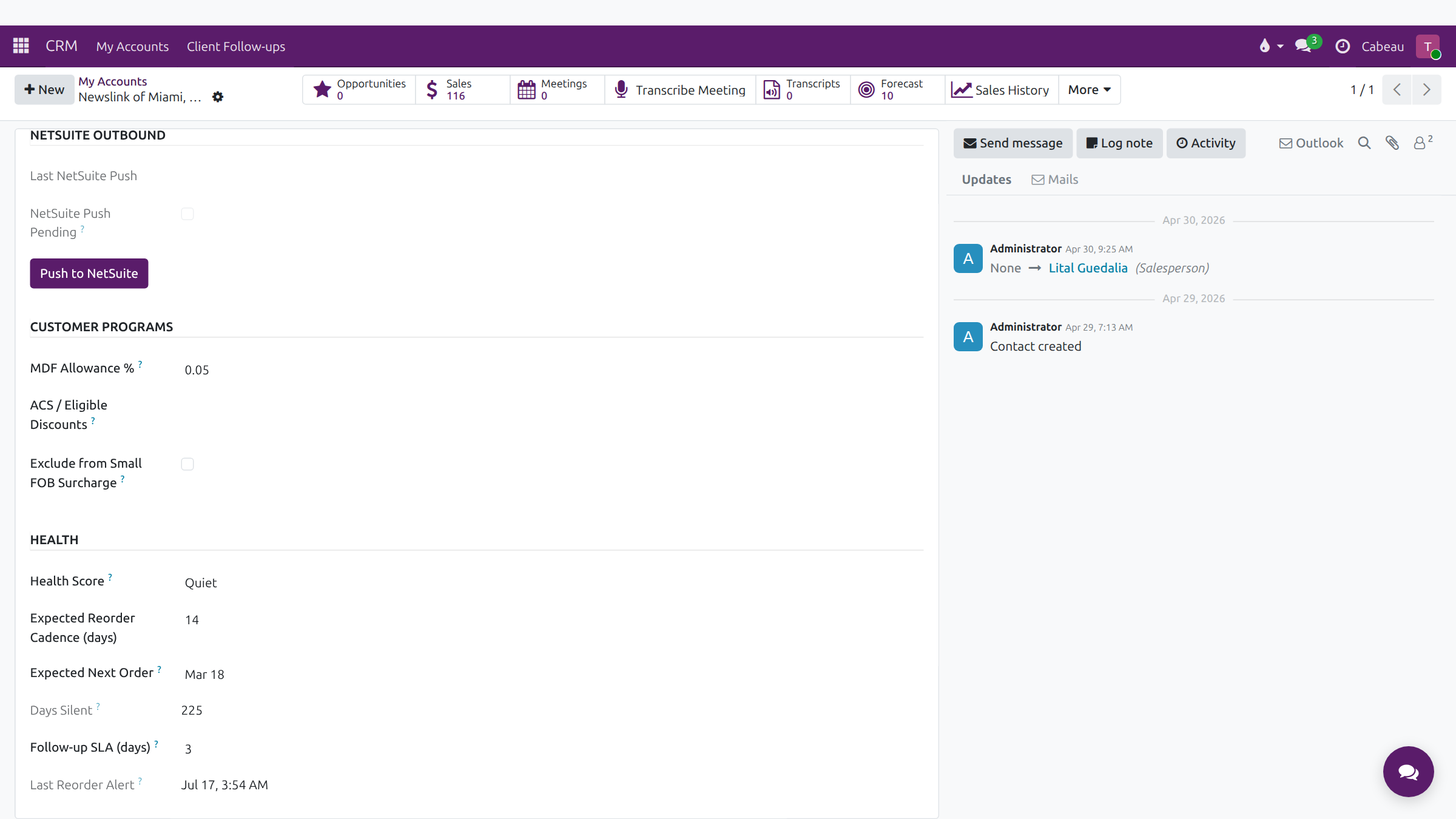
Section titled “FOB surcharge and minimum quantities”- On the account’s Cabeau tab, Customer Programs has Exclude from Small FOB Surcharge. Tick it for a customer who should not pay the small-order FOB surcharge; the surcharge itself is applied in NetSuite.
- Minimum quantities are set per product, as Min. Quantity on the customer’s price list and Item Pricing tab.
Exporting a price list
Section titled “Exporting a price list”- Open Pricelists and search for the customer.
- Tick the price list and select Actions > Export.
- Search for Pricelist Rules and add the product, price and minimum quantity fields.
- Choose XLSX and select Export.
Transcript
- This video shows how to export a customer's price list to Excel.
- Sales, Products, Pricelists lists every price list. Each customer with NetSuite pricing has its own.
- Open one to see its products, prices and minimum quantities.
- Back in the list, tick the price list, open Actions and choose Export.
- Search for Pricelist Rules and open it to add the product, the price and the minimum quantity.
- Export downloads the file in Excel format.
- That is how to export a price list.
Pricing on leads
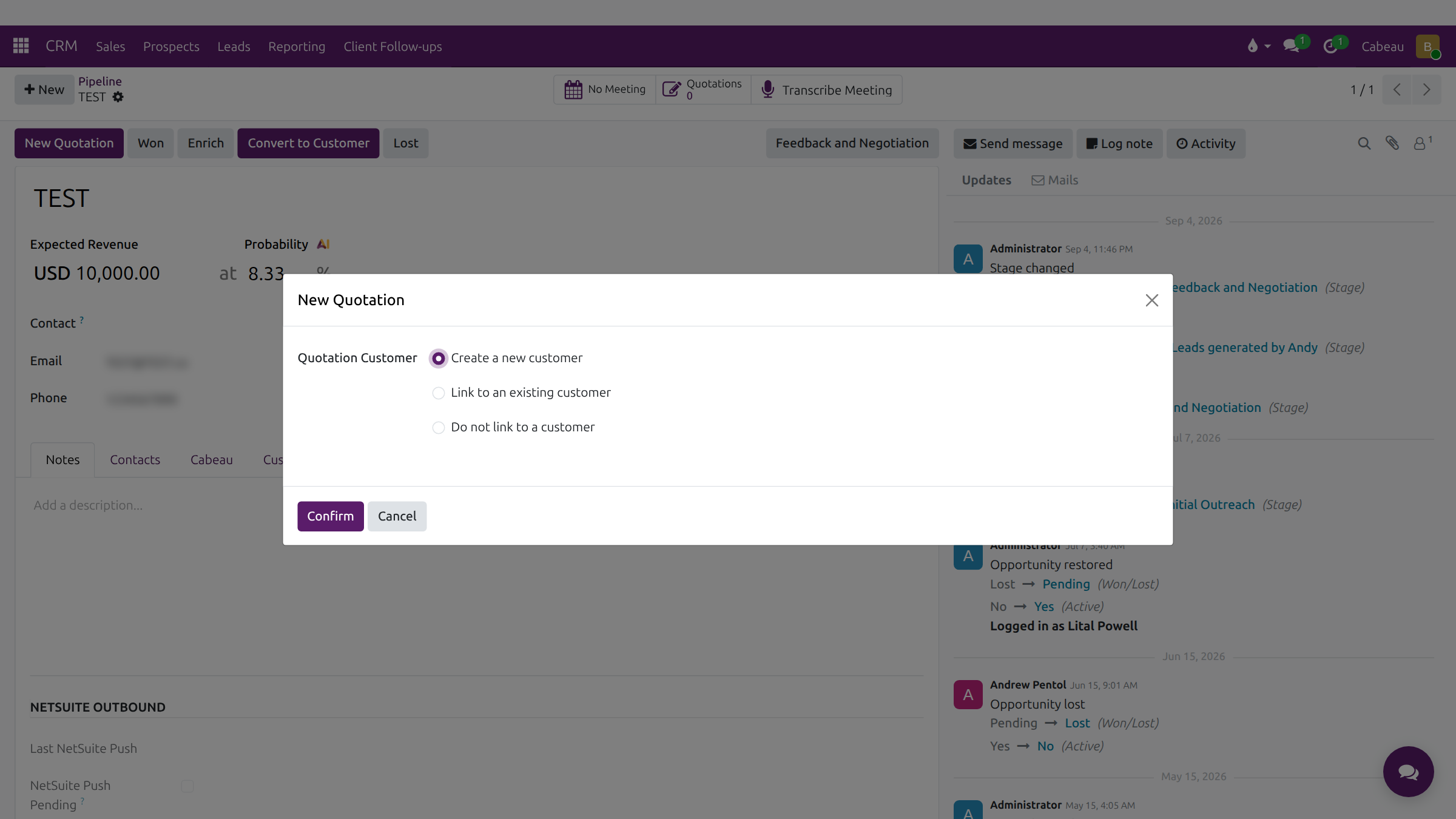
Section titled “Pricing on leads”A lead in negotiation carries a Pricelist and Customer Payment Terms on its Sales & Purchase tab. New Quotation on the lead first asks whether to create a new customer, link to an existing one, or not link, then opens the quotation.