
Reorder monitor
Account Manager
Accounts going quiet 
The reorder monitor learns each account’s ordering rhythm and flags the ones that go quiet. Find it under Cabeau Tools > Reorder Monitor.
Transcript
- This video covers the reorder monitor, which spots accounts that have stopped ordering on their usual rhythm.
- Cabeau Tools, Reorder Monitor, Order Cadence lists your accounts and how often each one orders.
- You see the usual gap between orders, the average order value, the trend, and orders in the last twelve months.
- Confidence shows how reliable the rhythm is. Lapsed means no confirmed order within the lapsed window.
- Use the filters to list accounts that are lapsed, trending down, or seasonal.
- Open an account to see the detail, including how much the gap between orders varies.
- Thresholds set how many days of slack each tier gets beyond its usual gap. The VP of Sales sets them.
- When an account passes its gap plus its slack, the Hub puts a reach out activity on the account for its account manager.
- Your dashboard lists these accounts under at risk accounts, so you can call them first.
- That is the reorder monitor. Next, orders and pricing.
Order cadence
Section titled “Order cadence”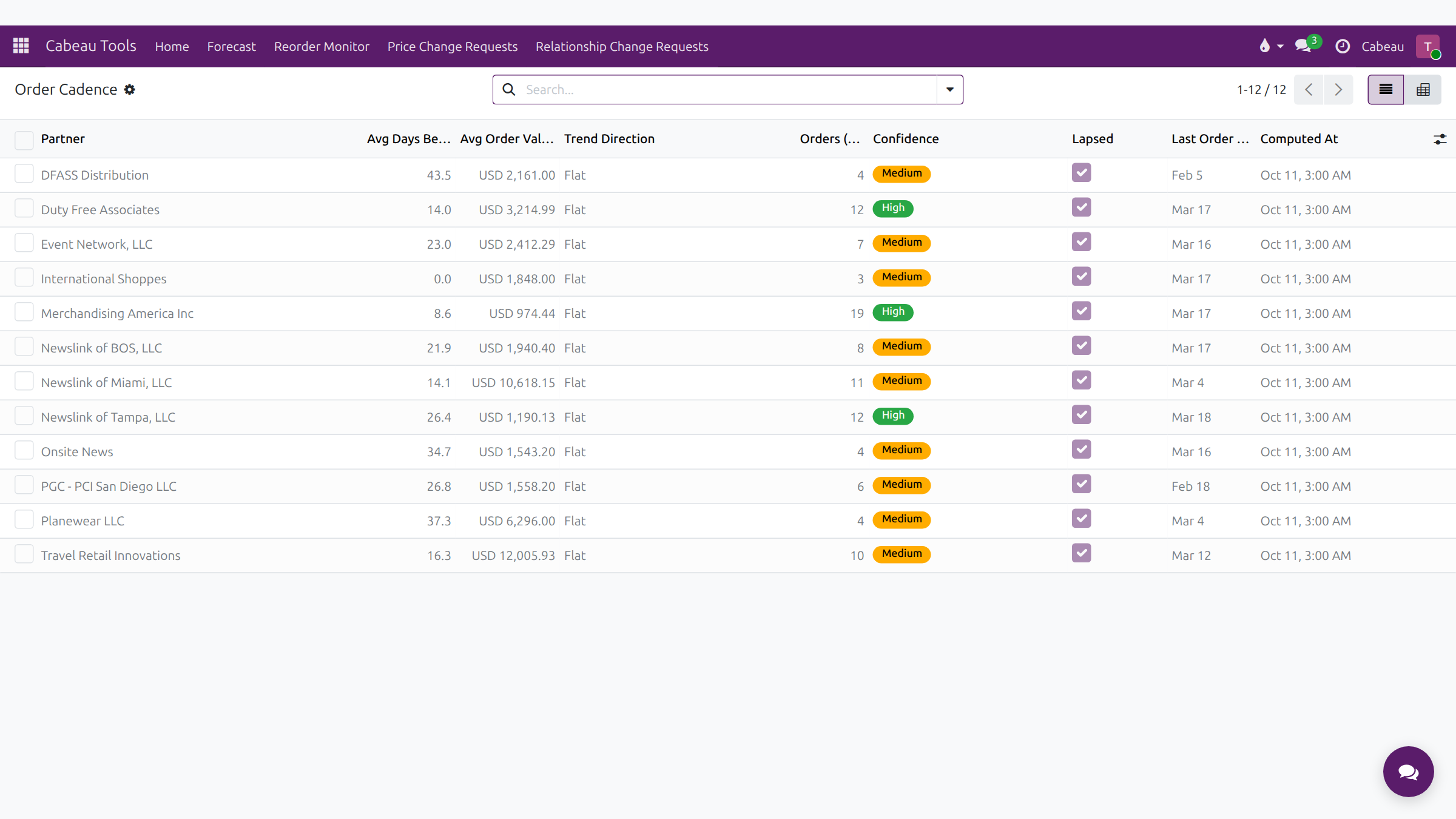
Order Cadence lists your accounts with their average days between orders, average order value, trend, orders in the last twelve months, confidence, whether they have lapsed, and the last order date.
Use the filters Lapsed, Trending down, Trending up, Seasonal and High confidence. Open a row for the full detail, which also appears on the account’s Order Cadence tab.
Thresholds
Section titled “Thresholds”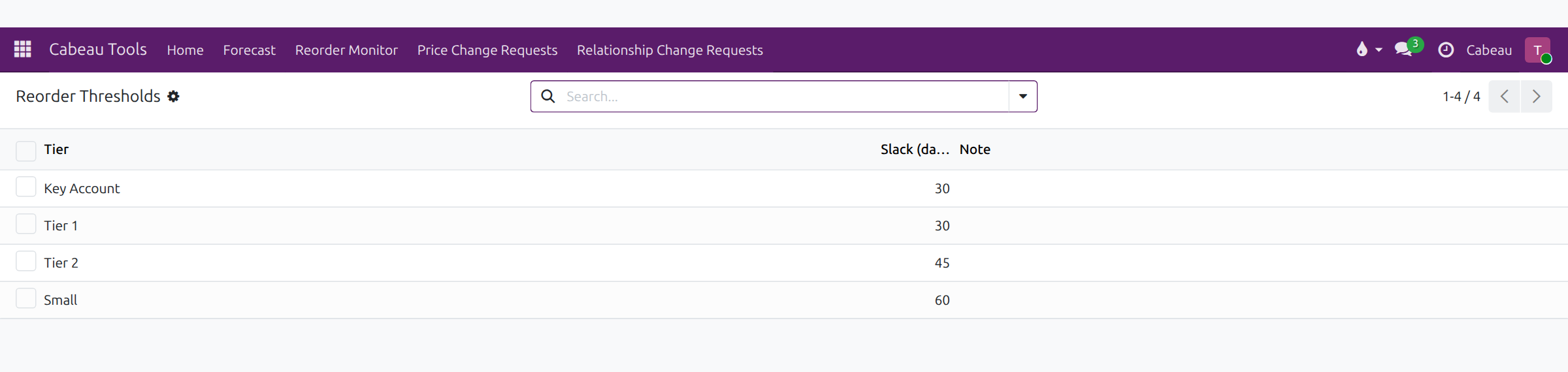
Thresholds set how many days of slack each tier gets beyond its usual gap before the Hub raises an alert. They are set by the VP of Sales; you can read them here.
Acting on a quiet account
Section titled “Acting on a quiet account”- Check the At-risk Accounts panel on your dashboard, or filter Order Cadence to Lapsed.
- Open the account and read its recent history in the chatter.
- Reach out, then log what happened and plan the next step with Activity.