
Territories and channels
VP of Sales
Territories and channels 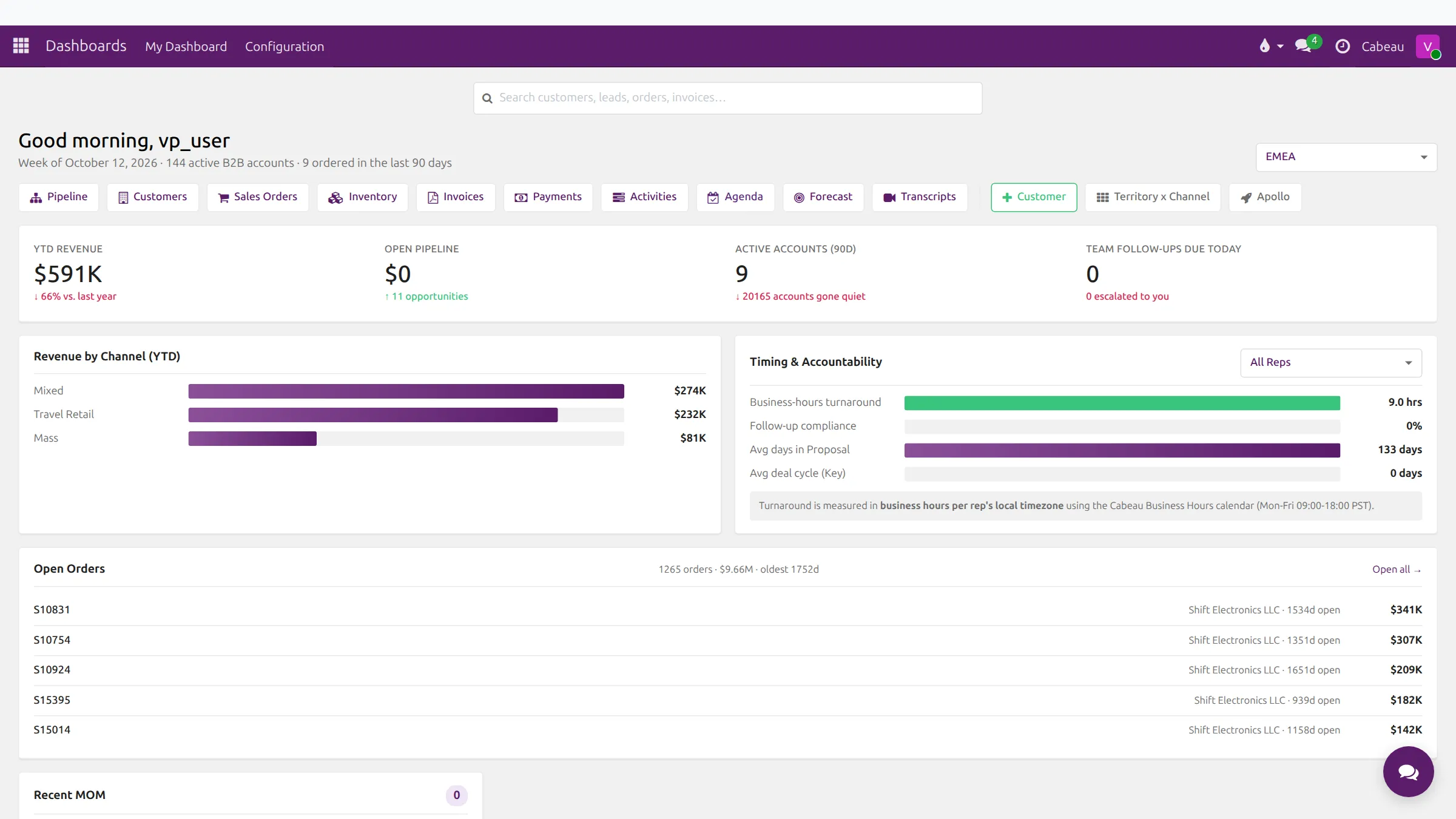
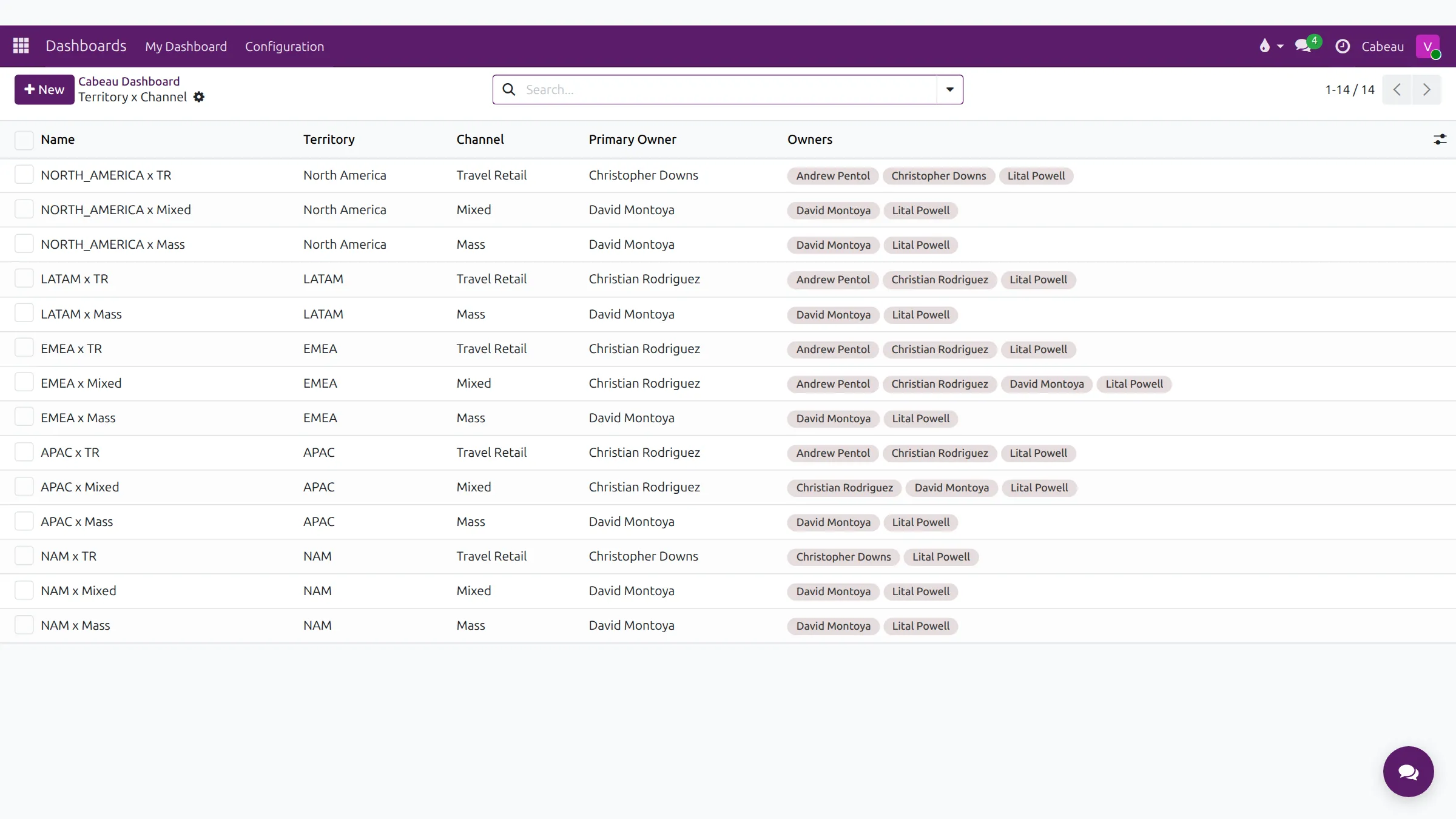
Every account sits in one territory and one channel. Territory x Channel is the grid of those combinations and who owns each one.
Transcript
- This video shows how territories and channels shape what you see in Cabeau Hub.
- The territory filter on your dashboard narrows every figure to one territory. Here, EMEA.
- Revenue, pipeline, active accounts and open orders now count EMEA accounts only.
- Set it back to All Territories to see the whole team again.
- Territory x Channel lists every combination of territory and sales channel: travel retail, mixed and mass.
- Each row names a primary owner, the rep accountable for those accounts, and every owner who can work them.
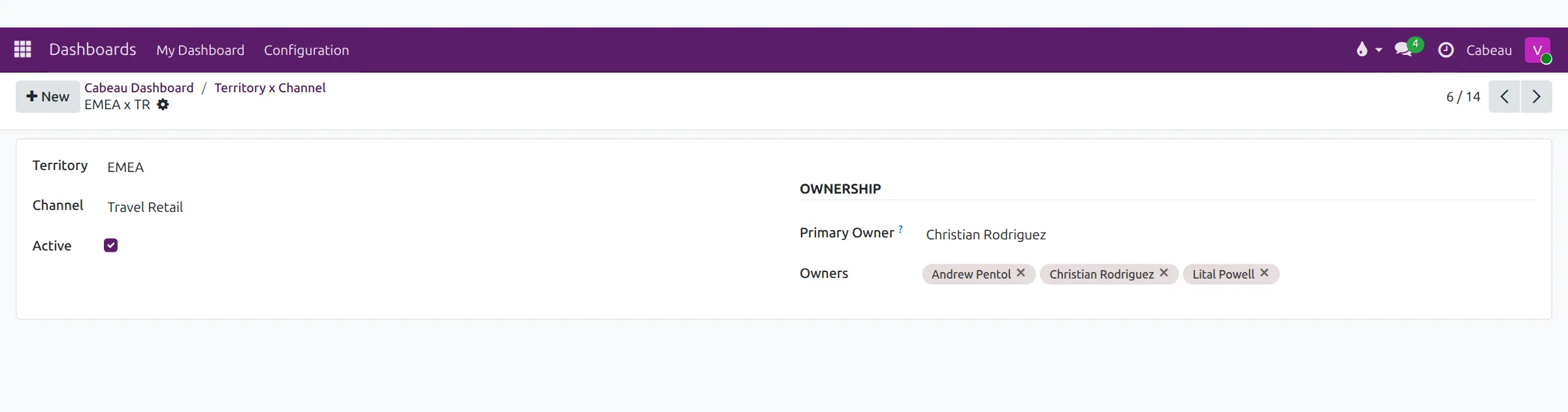
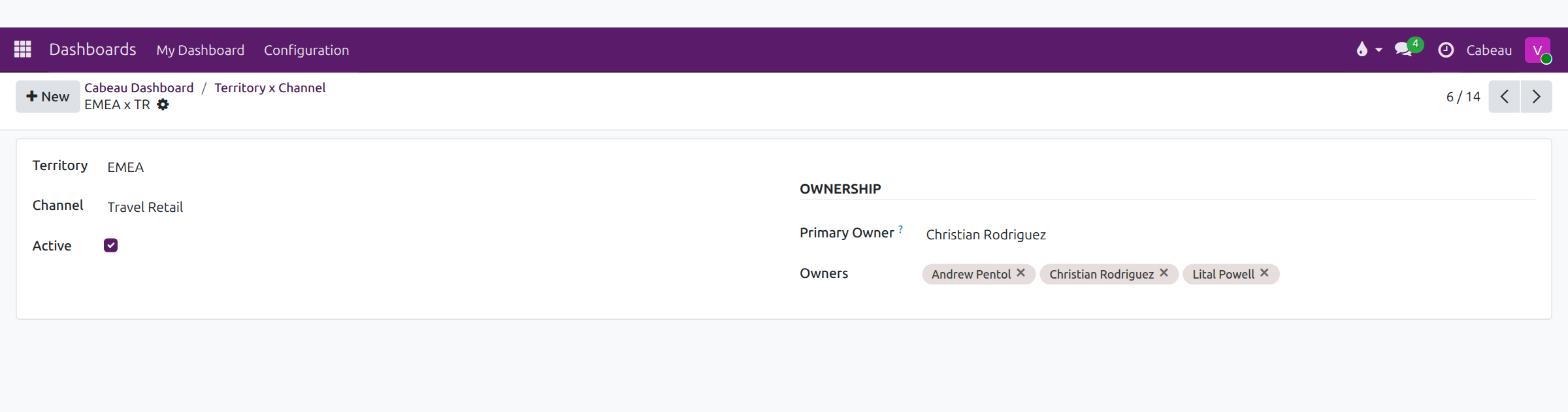
- Open a row to see its ownership on one card. Accounts in that territory and channel follow these owners.
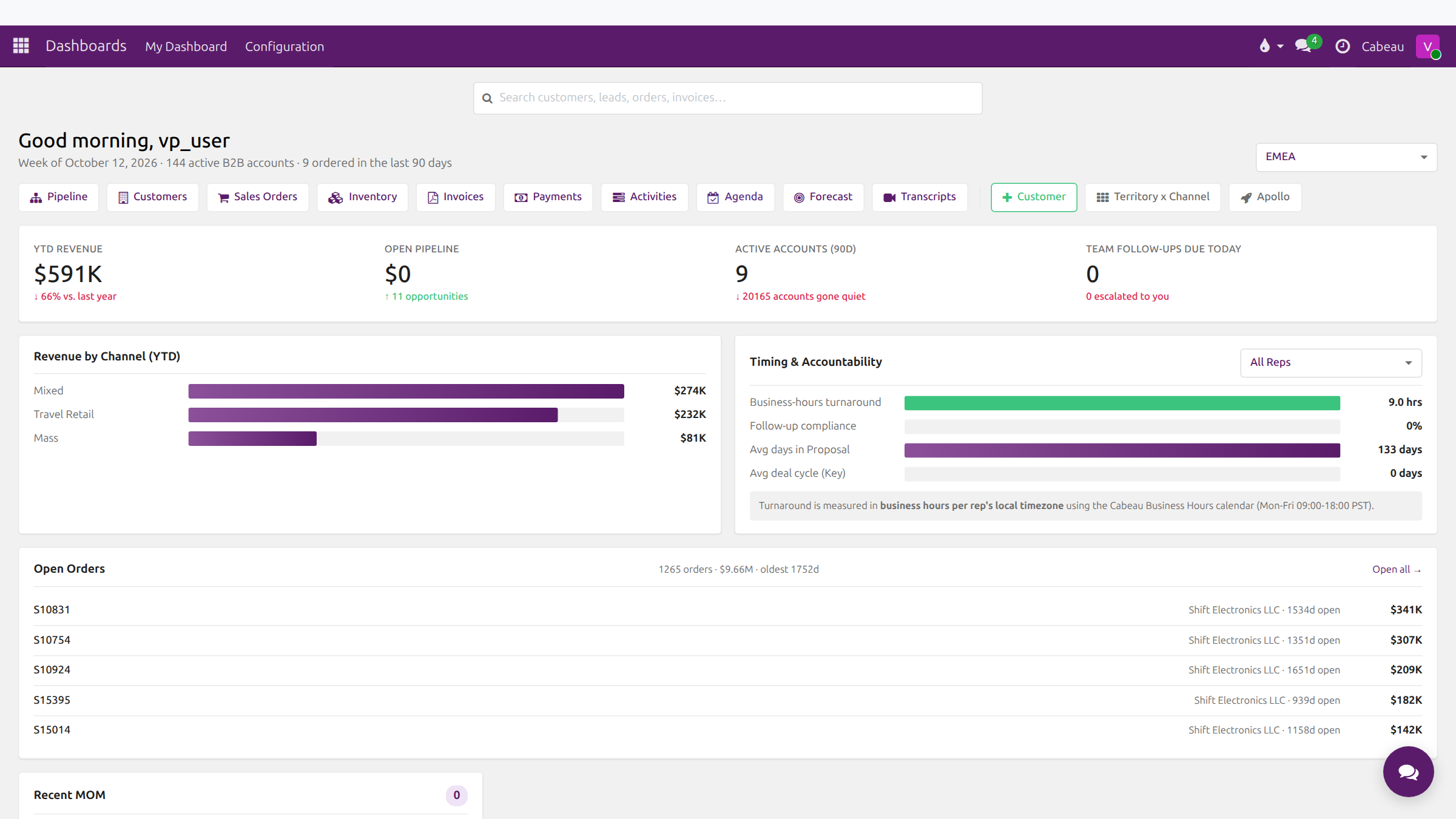
- Use the breadcrumb to return to your dashboard.
- That is territories and channels. Next, working with accounts.
Narrow the dashboard to one territory
Section titled “Narrow the dashboard to one territory”Pick a territory in the selector at the top right of the dashboard. Every tile and panel recalculates for that territory.
Territory x Channel
Section titled “Territory x Channel”Select Territory x Channel on the dashboard shortcut row.
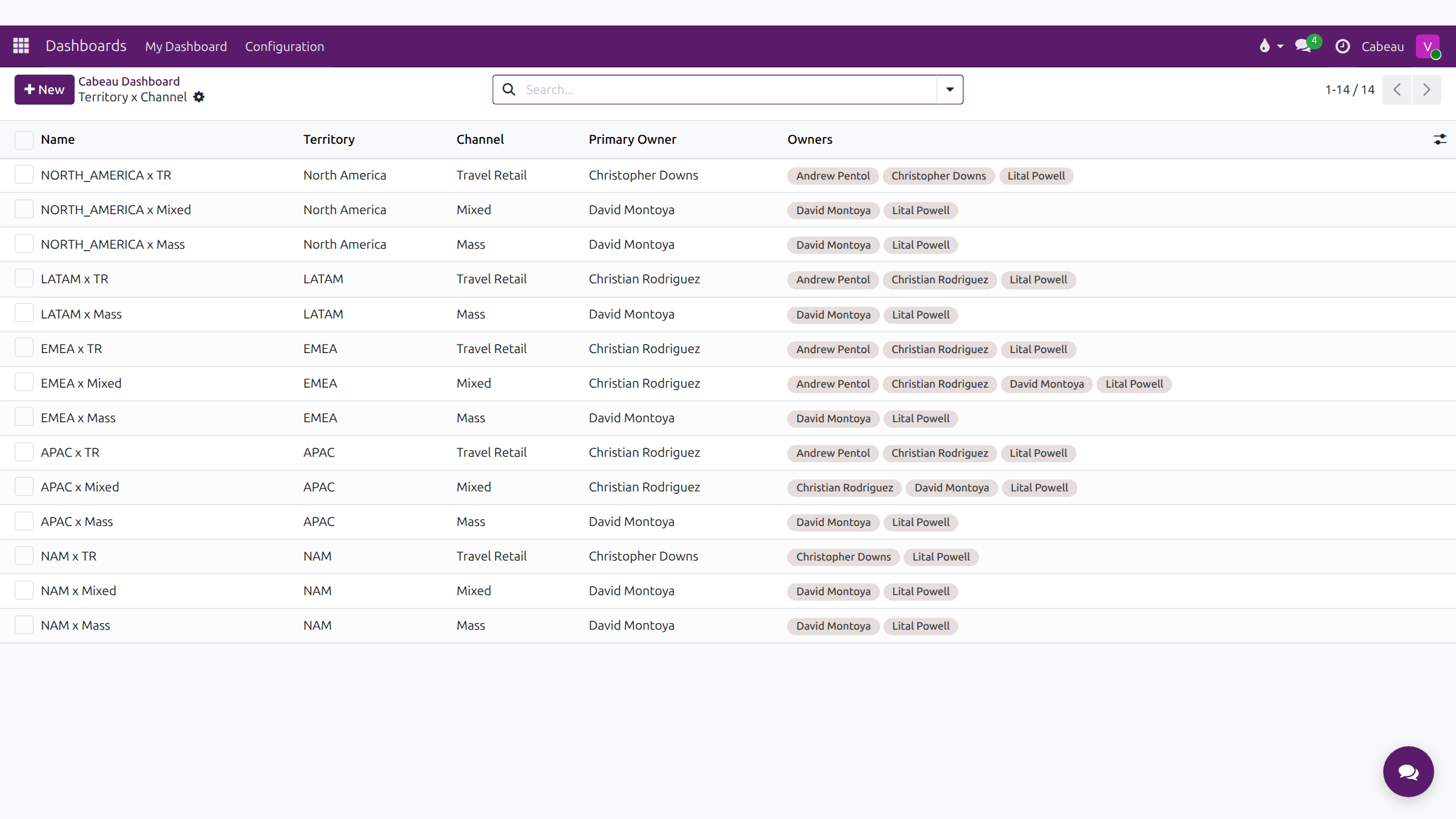
| Column | Meaning |
|---|---|
| Name | The combination, for example EMEA x Mixed |
| Territory | North America, LATAM, EMEA, APAC or NAM |
| Channel | Travel Retail, Mixed or Mass |
| Primary Owner | The account manager who leads this combination |
| Owners | Everyone who works accounts in it |
Open a row to see its card: Territory, Channel, Active, and the ownership fields. As VP you can change the primary owner and owners here.
The Cabeau tab on every account record shows the account’s own territory, channel and Territory x Channel value.